I need professional-looking headshots for LinkedIn and my portfolio, but I don’t have access to a good camera or photographer right now. I’ve seen a bunch of AI headshot apps in the App Store, but reviews are all over the place and I’m worried about wasting money or giving my photos to a sketchy service. Can anyone recommend a reliable AI headshot generator app for iPhone that delivers high-quality, realistic results and is safe to use?
Best AI Headshot Generators I Tried So You Dont Have To
I hit that point where all my online photos looked like they were taken on a 2014 Android in bad office lighting. Local photographers here start around $250–300, which felt dumb for a LinkedIn update and a few profile pics.
So I did what most of us do. Opened Google, Reddit, App Store, Play Store, and spent way too many evenings feeding selfies to different AI tools. iOS, Android, web, and a few “free hacks” with ChatGPT and Gemini.
Below is what I’d tell a friend if they asked “what should I use for a decent headshot without wasting time and money.”
I am one person, one face, one set of photos. Your mileage will differ, but the patterns were pretty clear.
Eltima AI Headshot Generator
(iOS, the one that surprised me most)
App Store:
Product page:
Video walkthrough:
There is already a long thread about it here:
https://www.reddit.com/r/DataRecoveryHelp/comments/1qi12pn/best_ai_headshot_generator/
What stood out for me with Eltima was not some “wow AI” moment. It was that I stopped re-running generations and thinking “almost, but not quite.”
What I noticed in actual use
• You get one free generation per day. It is limited, but good enough to slowly build a small library if you are patient.
• It worked off a single photo for me to start, but quality got better when I fed it a couple more later. The face matching stayed consistent.
• There are a lot of templates. The number they claim is “800+” and that does not feel inflated. Office, outdoor, casual, speaking at a podium, studio, portraits with colored background, etc.
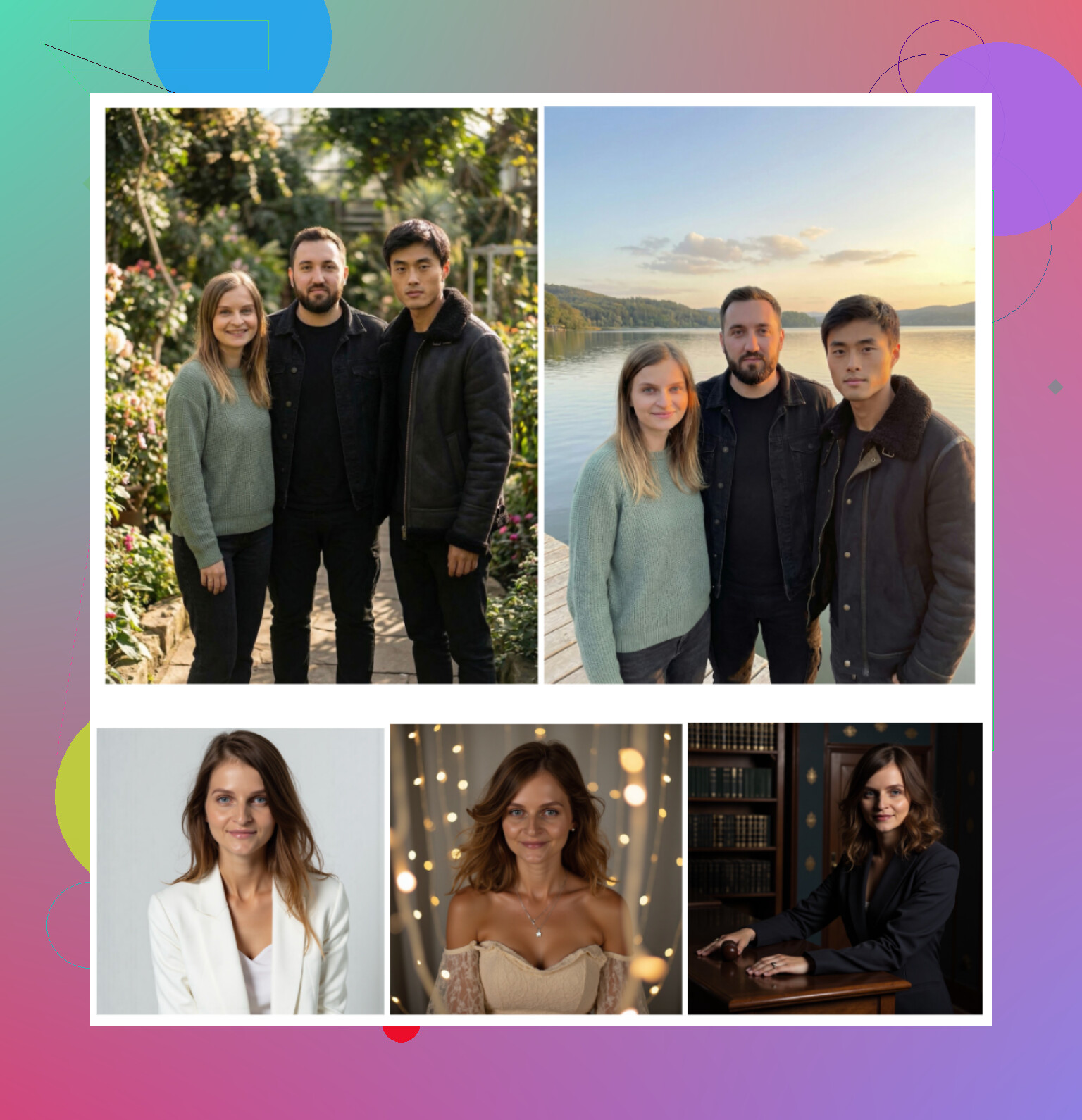
How it scored for me
-
Photo realism
Best out of all the apps I tried.
Skin texture still looked human. Eyes were sharp but not glassy. Teeth did not look like a whitening ad.
There is a built in “beauty mode,” but it did not push my face into that weird Barbie-skin territory like a lot of others. -
Styles
I ended up using it for three different things:
• Normal LinkedIn shots
• “Startup founder” style photos for a pitch deck
• Some relaxed ones for dating apps and socials
The professional styles stayed professional, even when I picked brighter outfits or less formal backgrounds.
- Pricing
At the time I used it:
• 7.99 per week
• 49.99 per year
Plus the free daily photo.
If you like to slowly test stuff and do not want a subscription right away, that daily free slot helps.
- Speed
Photos showed up in well under a minute for me most of the time on WiFi. I did not sit there staring at a spinner.
My take
If you are on iPhone and want something you can rely on without fiddling around, this was the strongest “install once, use a bunch, forget about it” option.
I used some of the photos on LinkedIn and in Slack and nobody guessed they were AI. That was my main test.
The Big Web Services
(Canva, Aragon AI, HeadshotPro)
I went to Google, typed “AI headshot generator,” and clicked the usual suspects: Canva, Aragon, HeadshotPro.
These three feel more “service-y” than “toy app,” but need more setup and money.
Canva
Website:
https://www.canva.com/
I already used Canva for social posts and presentations, so I knew the interface. Their portrait / headshot feature is basically layered on top of the rest of their editor.
What I did
• Uploaded a few basic selfies with neutral backgrounds
• Chose some of their “professional portrait” type presets
• Let it run and then cleaned up minor stuff manually in the editor
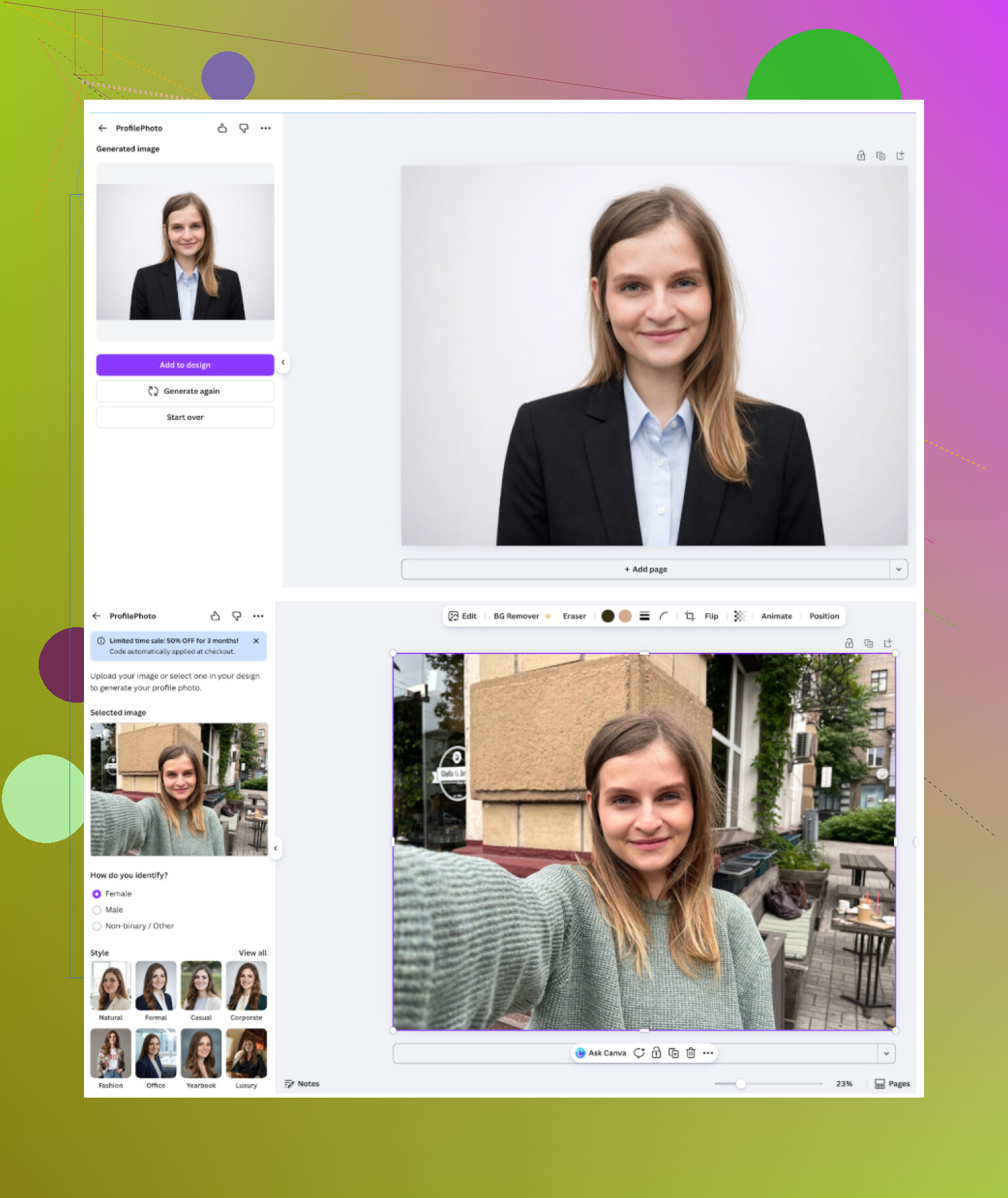
What it felt like
• It is straightforward once you are already inside Canva.
• The generations are decently fast.
• The results looked fine for a generic corporate photo.
Pros
• Strong editor around the AI part. You can tweak, crop, adjust colors, add background elements.
• Many “presets” and layouts included in the general Canva ecosystem.
• Good if you are already paying for Canva for other work.
Cons
• Skin often looked slightly too perfect, almost like beauty filter from a phone app.
• The price for Pro adds up. It sits around 120 per year, sometimes on sale, but that is for the whole product, not just headshots.
• Overkill if you only need headshots and nothing else.
If you already live in Canva, then it feels natural. If you only want one or two photos, I would not start a new subscription just for this.
Aragon AI
Website:
Aragon is all over Reddit and blog posts, so I expected a smooth flow. It was not that.
Onboarding
• You have to answer around ten questions about your role, goals, and style.
• Then you upload several photos. The interface encouraged more, but I stopped around 8–10.
• Nothing happens until you pay.
<img alt=‘Part 4: The ‘Free’ Way (ChatGPT, Gemini, & Hustle)’ src=‘https://ditchnet.org/uploads/default/original/image-1768927103.png’ height=‘537’ width=‘381’>
Pros
• Of all the web solutions, it kept my actual face the closest. When it worked, it looked like me on a good day, not a “prettier cousin.”
• Output delivered fairly quickly once the training step was done.
Cons
• Needs multiple input photos. If you are privacy sensitive or do not have a big set of selfies, that is a hurdle.
• No real free option. You start by paying.
• Slightly over-sharpened look in some batches.
Price I saw
• Around 12 to 25 for a pack, depending on promo and how many images you want.
I would use Aragon if you want a one time serious batch that sticks close to your real face and you do not mind paying immediately and feeding it many reference photos.
HeadshotPro
Website:
This one screams “HR tool.” The site talks about security, compliance, using it for entire teams at once.
What I saw
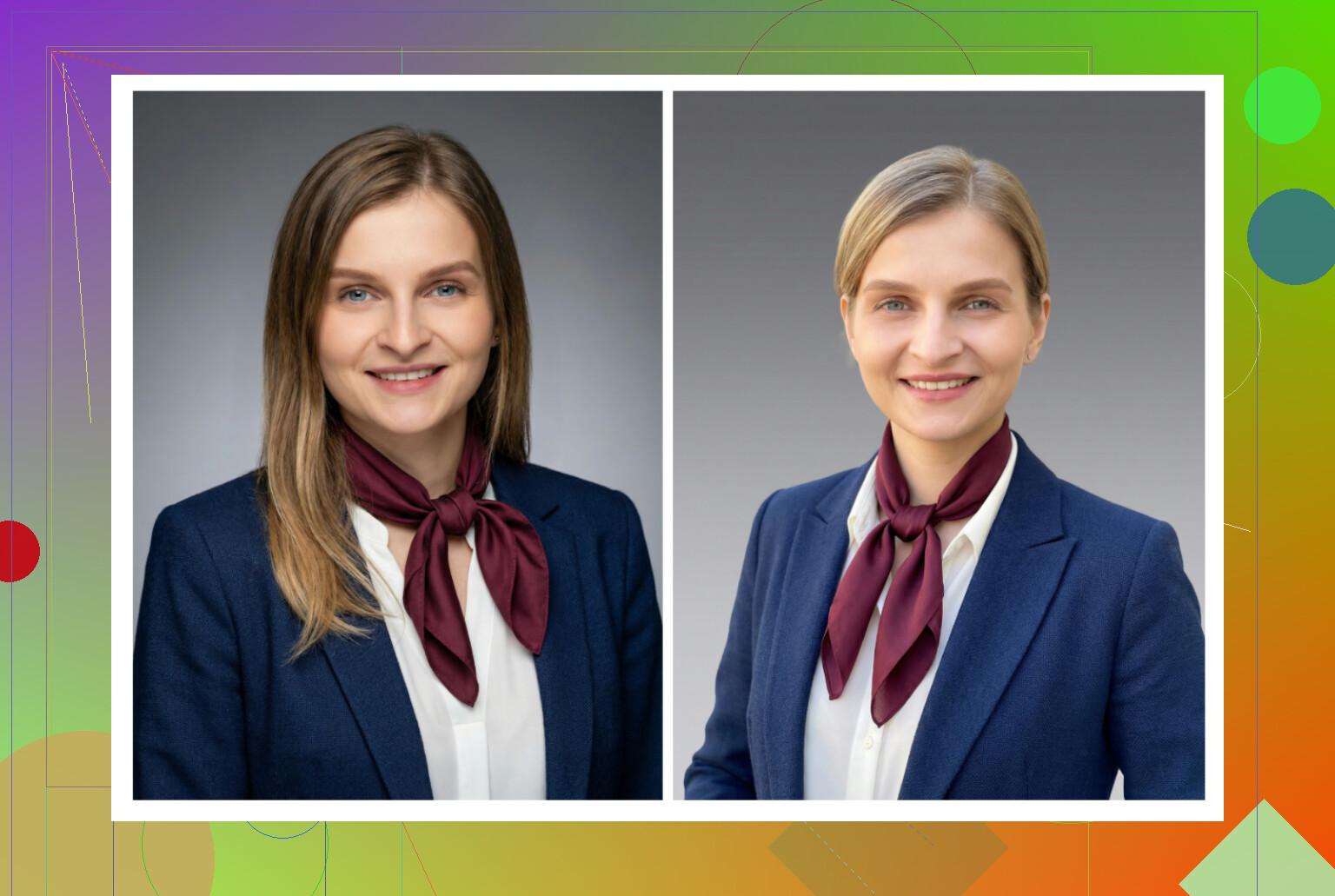
• Templates and output lean heavily into standard business shots. Neutral backgrounds, light color backdrops, blazer, subtle smiles.
• Minimal “fun” styles. It is aimed at ID badges, company intranet, formal LinkedIn.
Pros
• Very consistent lighting and angles across the batch.
• Good if your company wants everyone to have similar looking portraits without booking a photographer.
Cons
• Stiff vibe, no personality.
• Not something I would use for anything other than work stuff.
Price tier I hit
• Starting at about 29.
If you work in banking, law, government, or big corporates, this looks appropriate. For personal branding, it felt too generic.
iOS Apps I Tried
(Remini, Fotorama, Collart, IRMO, Eltima)
I tested each iOS app on the same day with similar photos. iPhone, indoor light, no ring light, nothing fancy.
I scored them on:
• How frustrating the UI felt
• How close the face stayed to mine
• How many useful styles I got, not only goofy ones
• Price vs what I would get over a month or two
• How long I was waiting for each generation
Remini (AI Photo Enhancer + Headshot)
App Store:
Remini has been around for a while as a “restore / enhance” tool, and they bolted on portrait / video features.
What I did
• Tested still photos and the video-from-photo option.
What went wrong
• The video generation was bizarre. In one test, it used a family picture and produced this awkward animation where a kid I was holding looked like an AI model pasted into a horror clip.
• Filters smoothed faces to the point of losing real texture.
• Clothing sometimes warped or turned into strange shapes.
Numbers
• Price when I checked: 9.99 per week or 79.99 per year, with a trial week.
• One video generation took around 13 minutes.
Good things
• Interface is simple. You do not have to think too much.
• Some of the photo-only results were okay for social profiles where people expect a bit of filter.
Bad things
• Too many outputs looked fake, especially in motion.
• I would not send any of those as a CV photo or to a recruiter.
For playful photos, sure. For a serious headshot, I dropped it after a couple of attempts.
Fotorama AI Photo Generator
App Store:
This one looked promising in screenshots with all those stylized examples. Reality was rough.
What happened
• I uploaded my set of photos, chose a headshot style, and started the first generation.
• It sat “analyzing” for about 30 minutes.
• No final image appeared. Coins were gone.
Pros
• Plenty of style options listed.
• Interface is not confusing.
Cons
• Output took forever.
• Broken run still ate credits. That killed my trust right away.
• If you want something fast for a deadline, this is not it.
Price I saw
• 11.99 per week or 79.99 per year.
With that pricing and that wait time, I do not see the point. I stopped using it after that failed generation.
Collart AI Photo Generator
App Store:
This one is more of an “AI playground” app that also includes portrait features.
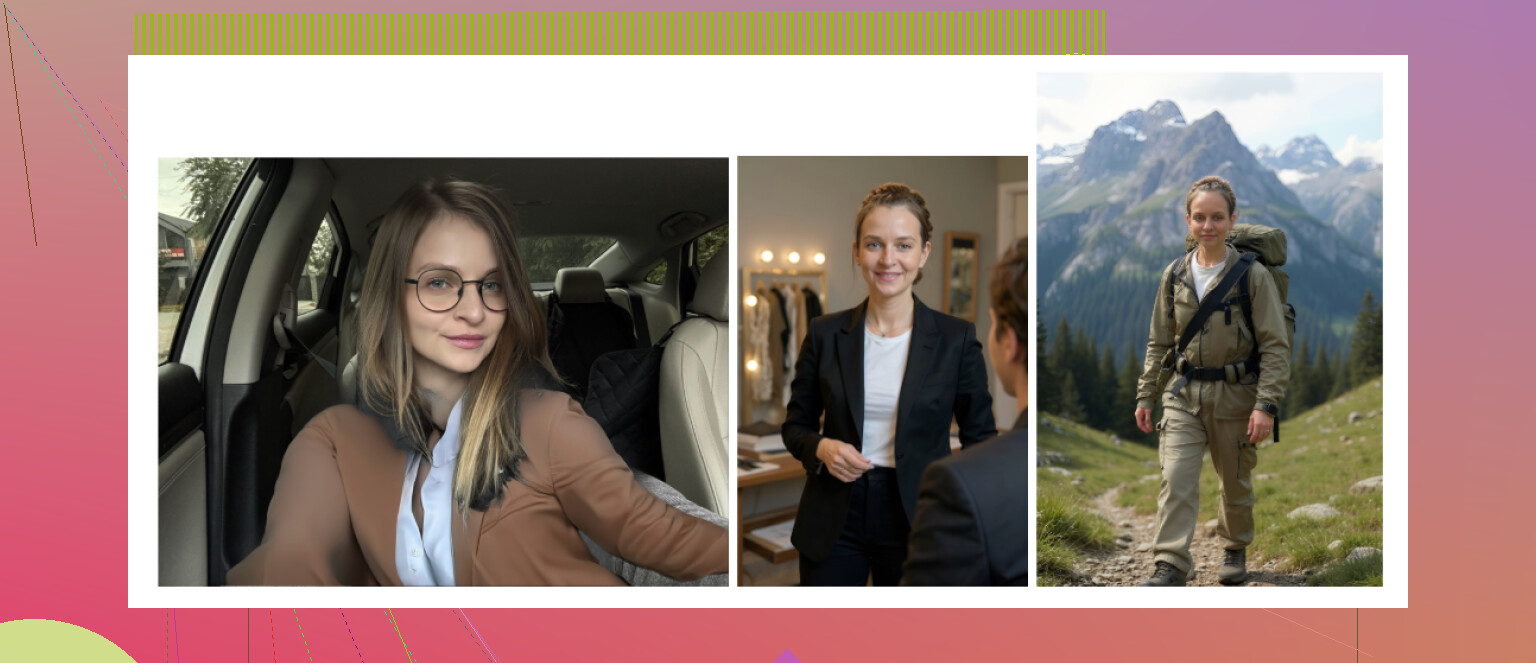
My experience
• It lets you animate photos and do all sorts of stylized stuff.
• For headshots, it usually asked for one input photo.
The problem
• With only one reference, the face drifted way off from my own.
• I got results that felt like a stranger sharing my haircut.
• Some outputs were so off I would be embarrassed to show them in a serious context.
Pricing
• Around 3.99 per week or 59.99 per year.
Good for: playful edits, stickers, animations.
Not good for: reliable, realistic portraits that must look like you.
IRMO AI Photo Generator
App Store:
IRMO sits somewhere in the middle.
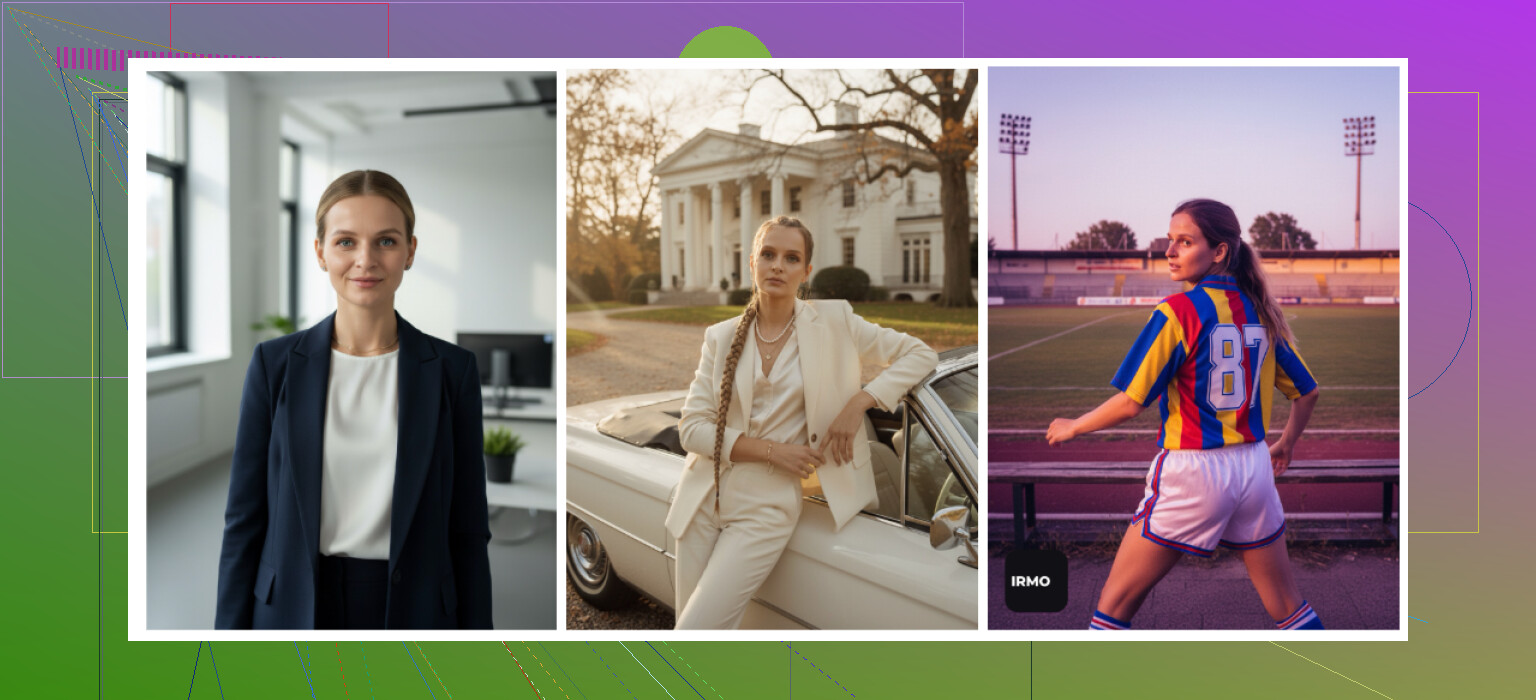
What I noticed
• Easy to use, thin interface, fast enough.
• It accepts one reference photo per generation.
• Styles are fun: studio, outdoor, fantasy, etc.
Results
• Quality of the rendering itself looked fine.
• Identity match was weak. Some photos felt like another person based loosely on my picture.
Details
• Pricing was about 5.99 per week or 99.99 per year.
• 2 to 6 minutes per image on my tests.
Good if you want “cool looking AI portraits” where likeness is not critical. For honest headshots, I did not feel confident using the results on professional sites.
Quick note on Eltima again
Out of all these iOS apps, Eltima ended up the one I kept installed.
Reason: it treated my face like a fixed anchor and then changed background, lighting, outfit, and vibe around it, not my identity itself.
Android Apps
(Remini, GIO, Momo)
I went more cautious on Android because the Play Store still has a lot of ad-heavy and sketchy stuff. I picked the ones that showed up often and seemed somewhat trusted.
Remini (Android)
Google Play:
On Android it behaves similarly to iOS.
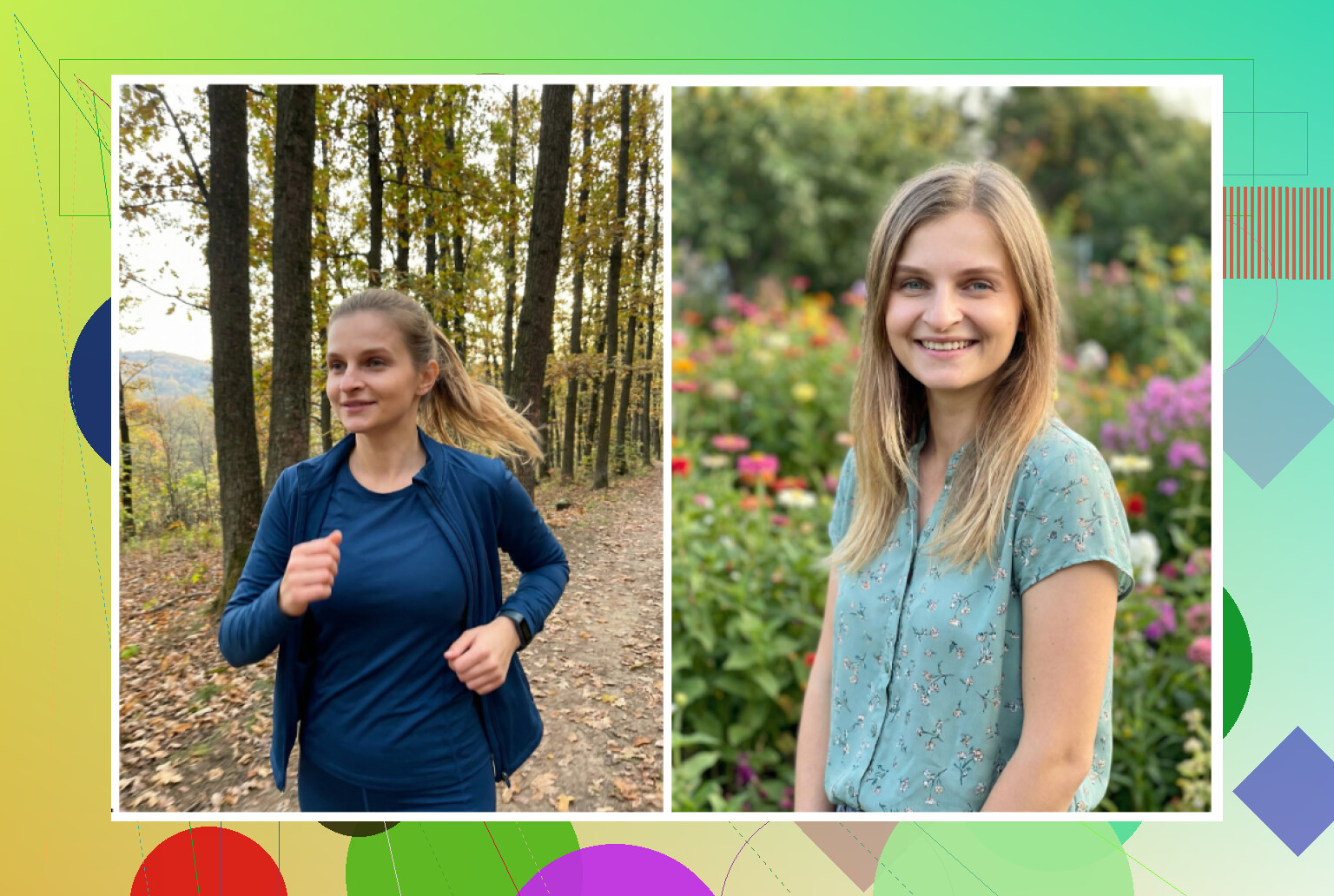
Upsides
• Setup is smooth. Upload a few selfies, press go.
• Decent variety of avatar and headshot styles.
Downsides
• It over-edits. Cheeks, jawline, skin, makeup. You end up looking like a version of yourself that went through a filter marathon.
• For strict corporate roles, that level of retouching feels risky.
For personal socials, it is fine. For serious applications, I would hesitate to use it as is.
GIO: AI Headshot Generator
Google Play:
GIO exists on iOS too, but I focused on Android here.
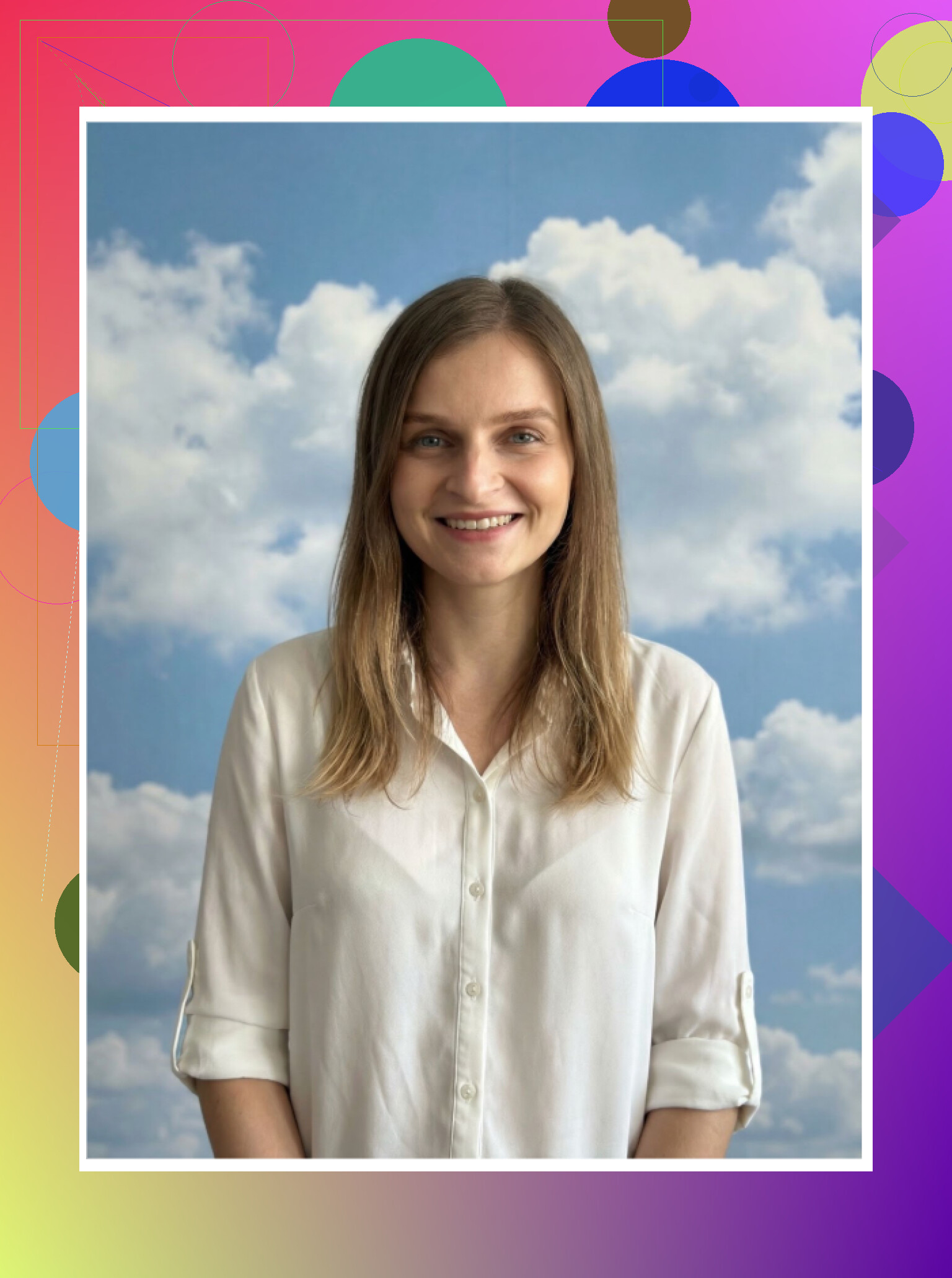
What I saw
• Some outputs looked less artificial than Remini.
• Clothing swaps worked reasonably well, especially jackets and shirts.
Where it broke
• Inconsistency. One photo looked decent, the next one looked like a failed resemblance.
• A fair number of results went straight to the trash.
If Remini feels too exaggerated for you, GIO feels like a weaker, slightly more natural option, but with more failures.
Momo
Google Play:
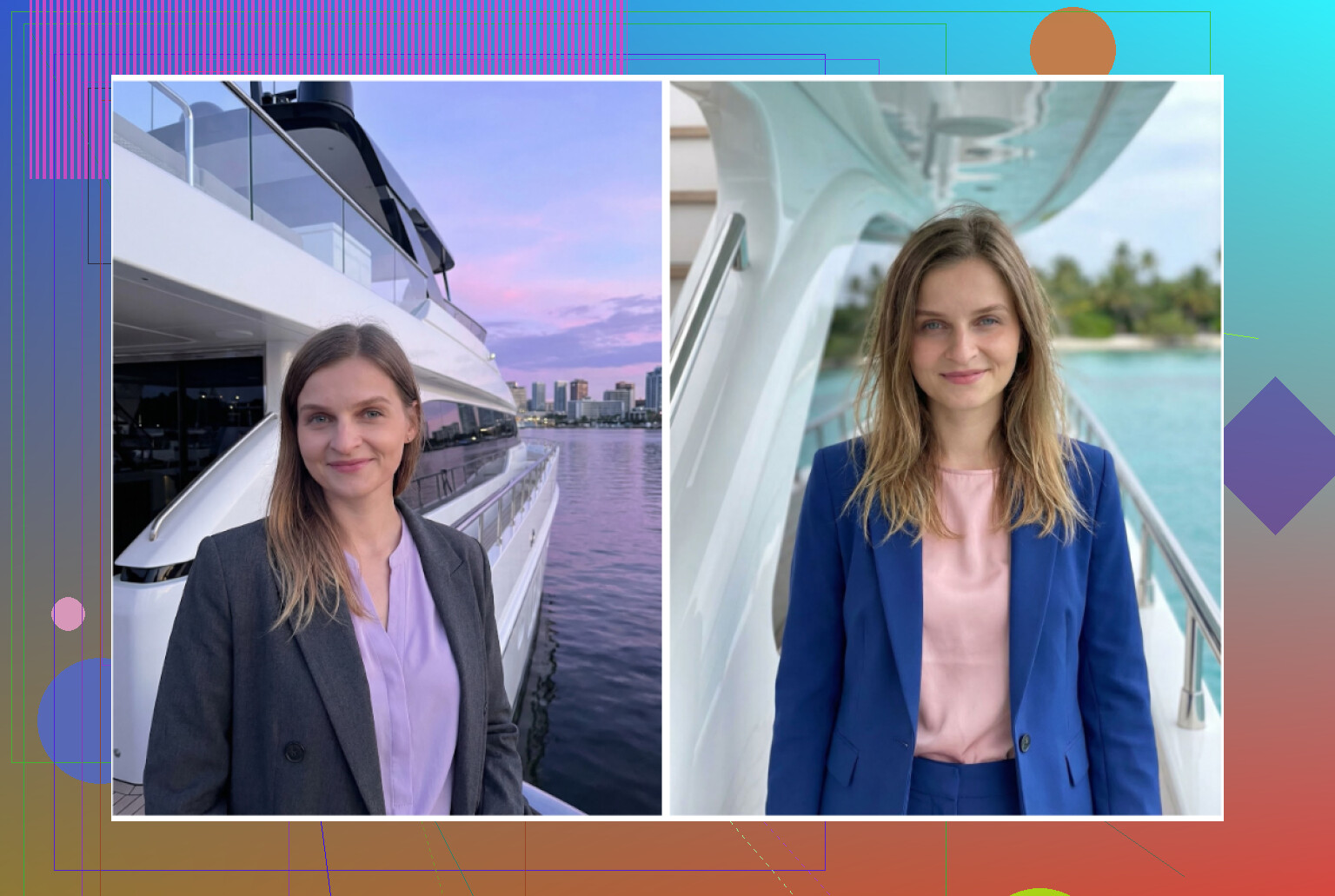
Momo sat somewhere between GIO and Remini in quality for me.
Pros
• Some outputs were good enough that I would reuse them.
• It did not oversoften the skin as aggressively as Remini.
Cons
• Pricing was a bit higher than I expected compared to the actual output level.
• When you compare side by side with the best runs from Remini, Momo felt a touch behind in polish.
If you do not like Remini’s hyper-polished look, Momo might feel more balanced, but I struggled to justify the higher cost for slightly weaker photos.
Free-ish Route
(ChatGPT, Gemini, prompt grind)
Can you get decent headshots for 0 dollars? Sort of. It takes time and some trial and error.
Main tools I tried
• ChatGPT with DALL·E
• Gemini with their Nano Banana Pro / image models
Sites
ChatGPT:
https://chatgpt.com/
Gemini images:
The method I kept coming back to
I started calling it the “description loop” in my notes.
-
Find a reference photo
A headshot of someone with posture, lighting, or outfit style that you want. Could be from LinkedIn, a stock image, whatever. -
Ask the model to describe it
In ChatGPT or Gemini, upload that reference and ask for a detailed description of pose, lighting, framing, clothing, facial expression, background, etc. -
Copy that description into a clean new chat
Do not bring the original image. Work from text only. -
Upload your own selfie
Add something like “Use this face, but follow the style details described above.” -
Use the image generation endpoint
For ChatGPT, use DALL·E. For Gemini, pick their image generation model such as nano banana or whatever is listed at the time.
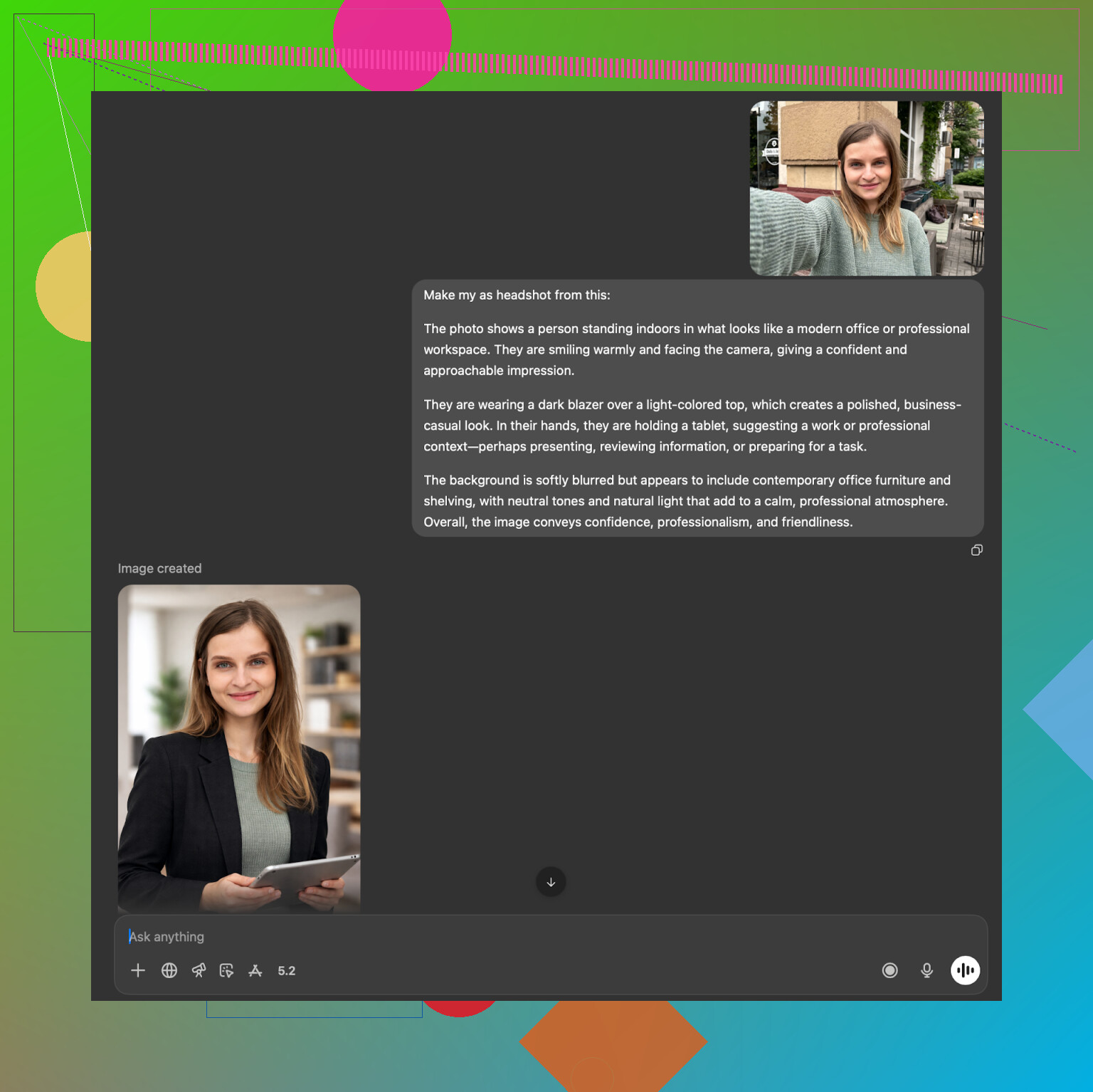
What I got
ChatGPT (DALL·E)
• Output usually looked like a close relative, not an exact copy.
• It caught general face shape and hair but often altered eyes, nose, or jaw slightly.
• Backgrounds and lighting followed the reference description pretty well.
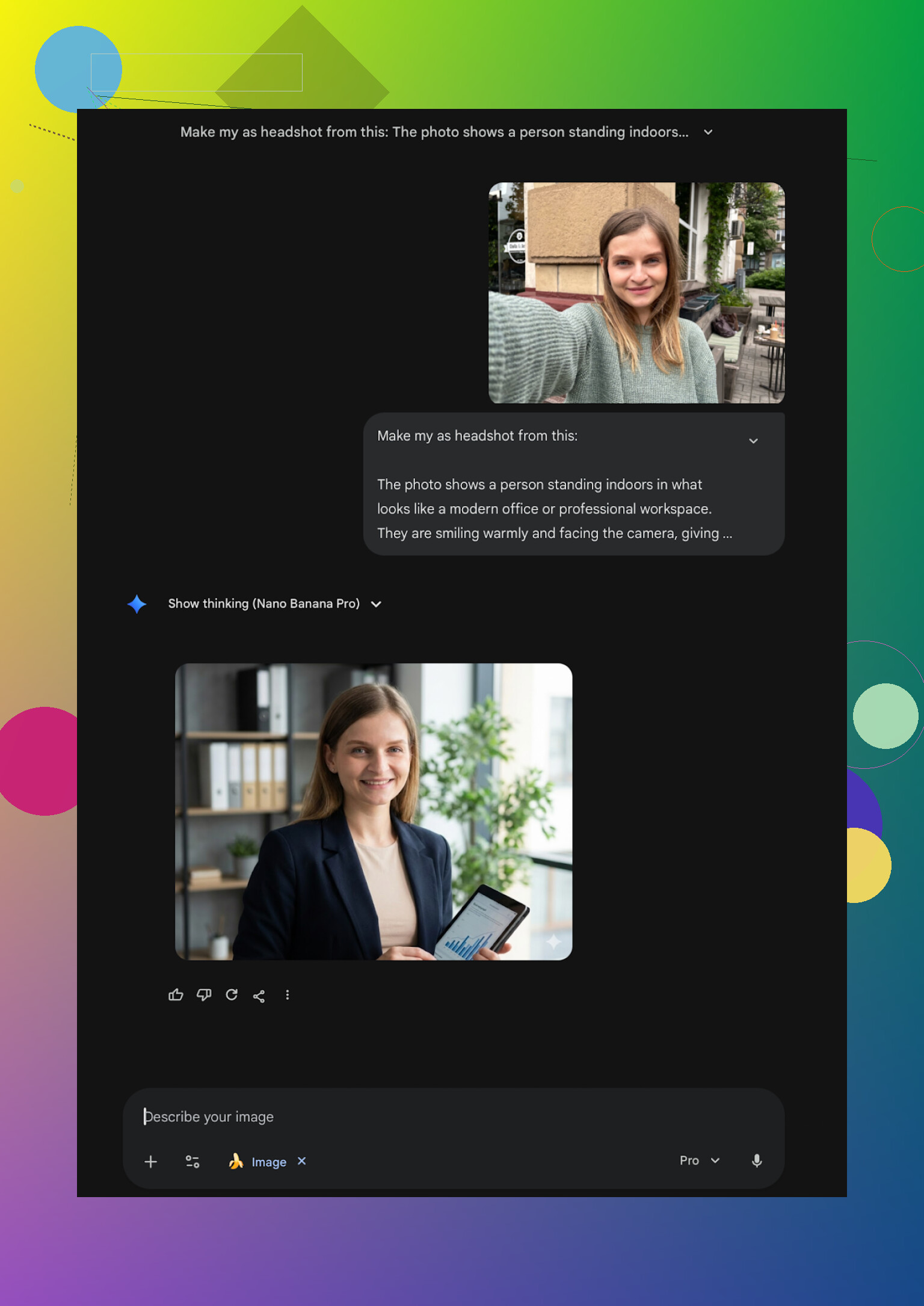
Gemini (Nano Banana Pro)
• Better at raw photo realism in some runs.
• Stricter on “real person” style requests. Sometimes refused if the prompt looked too close to imitating an actual individual.
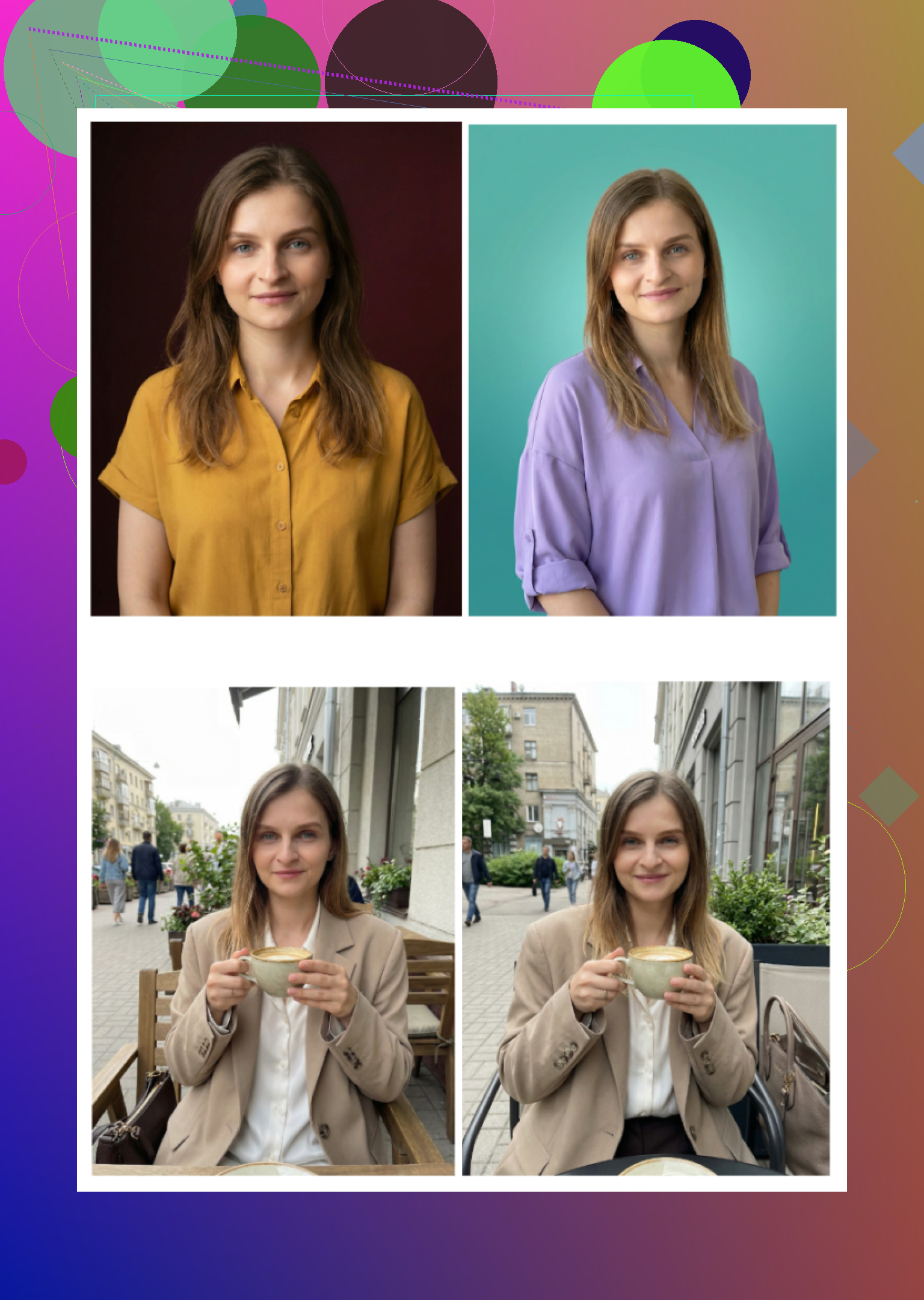
This route is decent if:
• You already pay for ChatGPT Plus or Gemini Advanced.
• You are okay with a face that is “close enough” and you only need casual use.
• You like messing with prompts and tweaking tiny details.
It is weaker if:
• You need strict identity match with your real face.
• You have a deadline and cannot spare time iterating.
• You dislike tinkering.
What I ended up doing long term
After a few weeks of testing:
• Web tools
Canva and HeadshotPro feel more suitable for teams and structured work setups. Aragon is good for a one time, serious batch as long as you do not mind a heavier onboarding.
• iOS
I kept Eltima installed and removed the rest. The free daily photo plus consistent likeness made it the least annoying option.
Eltima App Store link again in case you skipped above:
• Android
If I had to use Android only, I would reluctantly lean to Remini for social and try to manually tone down the edits, but I was not convinced enough to make it my main solution.
• “Free” ChatGPT / Gemini route
I still use this to test weird concepts or backgrounds, but not for serious profiles. The outputs helped me understand what kind of angles and lighting I prefer though, which then informed what I picked inside Eltima and other tools.
What helped most in practice
If you decide to try any of these, a few things made a noticeable difference in my results:
-
Input photos
Give the app photos where your face is clear, front facing or slight angle, and not overexposed. Every bad selfie you upload drags the training in the wrong direction. -
Consistency
Stick with one tool for a bit instead of hopping between ten. Once I understood how Eltima “thinks,” it got easier to pick the right template and lighting each time. -
Purpose
I ran separate batches: one strictly “work safe,” one more relaxed. Mixing both in the same generation set made it harder to pick results later.
That is basically the whole journey. If you want realistic, low-hassle, and you are on iPhone, Eltima ended up the one I trust enough to put on LinkedIn. Everything else had some catch, either in speed, likeness, or price.
Short answer from my own testing on iPhone: use Eltima Ai Headshot Generator App first, then keep one web tool in your back pocket.
I agree with a lot of what @mikeappsreviewer wrote, but I do not think Canva or Remini are strong primary options if you care about looking like a normal human on LinkedIn.
Here is how I would break it down for you.
- Best iPhone app right now: Eltima Ai Headshot Generator App
- Strong likeness. It keeps your actual face. You do not end up looking like a cousin.
- One free headshot per day. Slow, but if you are not in a rush, you build a small library.
- Good for LinkedIn, portfolio, and “founder” style shots. The neutral backgrounds and office styles look clean.
- Subscription is not the cheapest, but you can do a focused month, export what you like, then cancel.
How to get good output with it:
• Upload 4 to 8 clear selfies. Front or slight angle. No sunglasses. No heavy filters.
• Mix indoor and outdoor, but keep consistent hair and facial hair.
• Start with simple studio or neutral office templates before trying fancy ones.
• When you get 10 to 15 keepers, stop generating. Pick 2 or 3 and use those everywhere.
- When to use Remini on iPhone
I am harsher on Remini than Mike.
- Face often turns too smooth and “influencer”.
- Good for dating apps or casual socials.
- For LinkedIn or a portfolio pdf, I would be careful. Recruiters notice when skin looks plastic.
If you try it anyway, pick the most natural filter and avoid any “glam” or “beauty” options.
- Canva as a backup, not your main generator
If you already pay for Canva Pro for work, the headshot feature is fine as a second step.
What it is good for:
- Cropping to LinkedIn aspect ratio.
- Adjusting color, brightness, and background after you get a base headshot from Eltima Ai Headshot Generator App or a photo.
What it is weaker at: - First pass generation that looks like a real camera shot of you. Faces tend to look too polished.
- What to avoid if you care about time and sanity
- Fotorama: slow, credits vanish, unreliable.
- Collart and IRMO: fun toys, weak identity match. Feels more like avatars than headshots.
These are fine if you want stylized portraits, not if you want “I would hire this person” vibes.
- Quick workflow I recommend for your use case
You said LinkedIn and portfolio, no photographer. I would do this:
- Step 1: Take 10 new selfies in daylight near a window. Plain wall, simple shirt, no extreme angles.
- Step 2: Feed the best 5 to Eltima Ai Headshot Generator App.
- Step 3: Generate several “studio” and “office” looks. Ignore anything too glossy or dramatic.
- Step 4: Pick 2 outputs. One more formal, one friendly.
- Step 5: If you use Canva, drop them in there to crop, fix exposure slightly, then export.
You do not need ten apps, and you do not need 200 outputs. One or two strong, consistent photos across LinkedIn and your portfolio will do more than hunting for the “perfect” AI shot.
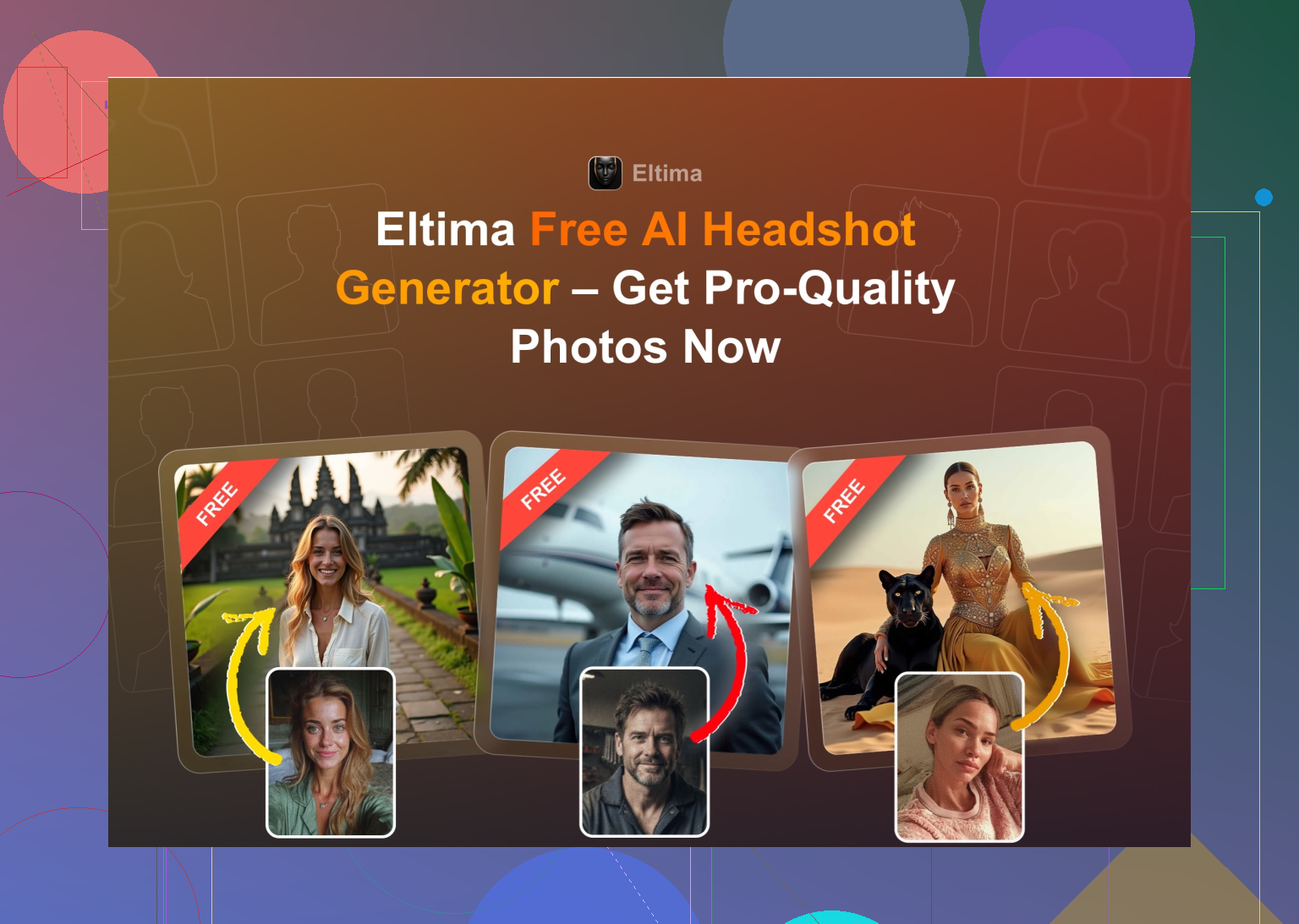
Short answer: if you’re on iPhone and care about looking like a real human on LinkedIn, Eltima Ai Headshot Generator App is the one I’d start with, then maybe layer other tools on top if needed.
I’m mostly on the same page as @mikeappsreviewer and @viajeroceleste, but I’d tweak their advice a bit.
1. Eltima as the “workhorse,” but use it surgically
They’re right that Eltima is the most reliable iOS option right now. Where I differ a bit: I wouldn’t keep it for months. I’d treat it like a short-term tool:
- Install Eltima Ai Headshot Generator App
- Upload 5–8 solid selfies (natural light, plain background, same hair/facial hair as you want on LinkedIn)
- Generate aggressively for a week or two
- Export 10–15 favorites in full resolution
- Cancel the sub and delete the app
That way you’re not stuck paying a recurring fee for something you only needed once. The free daily shot is nice, but if you actually need photos now, just pay for a short burst, get your library, and move on.
2. Where I slightly disagree on Canva and Remini
-
Canva: I agree it’s overkill as a primary generator, but I actually find it very useful as a “finishing studio.”
- Use Eltima for the face & pose
- Then drop the best 1–2 into Canva to:
- Match LinkedIn’s crop
- Desaturate slightly (AI often makes colors a bit too “poster-y”)
- Tone down contrast so it looks more like a real camera shot
-
Remini: I’m even less sold on it than they are.
The skin smoothing is a problem, but the bigger issue for professional use is identity drift in some modes. You can end up with “you, but 10% different,” which sounds minor until a recruiter meets you on Zoom and clearly notices something’s off. I’d keep Remini for repairing old photos or casual social stuff, not for the main LinkedIn headshot.
3. Apps I’d skip for your use case
They already covered these, but to be blunt:
- Fotorama: if an app eats credits and doesn’t give you results, that’s a one-strike situation, not a “maybe it’ll work next time” thing.
- Collart / IRMO: fun for stylized AI art, not for “hireable adult in a real job” vibes. The likeness issues are a non-starter if this is going on a portfolio or resume.
4. One thing they didn’t emphasize enough: consistency
The big trap with all these headshot apps is you end up with 40 photos that all look like different timelines of your life:
- Different hair length
- Different face shape from over-editing
- Different ages
For LinkedIn and a portfolio, what actually matters is:
- One or two photos where you look like you, today
- Use the same photo everywhere: LinkedIn, portfolio, GitHub, personal site, maybe Slack
Eltima is strong exactly here: it tends to keep your face consistent across templates. That’s more important than “800+ styles” or whatever.
5. My practical suggestion given your situation
You have no photographer, no fancy camera, need professional output:
- Take 10 new photos with your iPhone in front of a bright window, plain wall, simple shirt. Don’t overthink posing.
- Install Eltima Ai Headshot Generator App, upload the best 5–8.
- Stick to simple studio / neutral office backgrounds, nothing too dramatic or “model-y.”
- From the results, pick:
- 1 formal shot for LinkedIn / CV
- 1 slightly more relaxed one for portfolio / personal site
- If needed, do final tweaks in something like Canva, but keep edits very light.
You’ll get something that looks “taken by a decent DSLR in a coworking space” without it screaming AI. That’s the real win here, more than chasing the most “impressive” effect.
Cutting to the chase: on iPhone, Eltima Ai Headshot Generator App is the one that currently hits the “LinkedIn ready” sweet spot, but it is not magic and it is not the only move.
Quick comparison to what @viajeroceleste, @espritlibre and @mikeappsreviewer already covered:
They are right that most iOS headshot apps either
• distort your face (IRMO, Collart),
• oversoften everything (Remini), or
• waste time / credits (Fotorama).
Where I slightly disagree with them is on how long you should lean on any one app and how much editing you should accept before it stops looking like you.
Eltima Ai Headshot Generator App: realistic take
Pros
- Very strong likeness: across multiple templates, your face tends to stay your face, not a glamorized cousin.
- Solid photo realism: skin still has texture, eyes are not plastic, teeth are not hyper-bleached.
- Template range is actually useful: office, neutral studio, mild “founder” vibe, casual. Easy to get both LinkedIn and softer portfolio shots.
- One free generation per day: good for slow, low-budget experimenting.
- Fast on Wi‑Fi: you are not stuck watching a progress bar during a job application sprint.
Cons
- Subscription creep: weekly pricing is aggressive if you forget to cancel. I would not keep it running for months.
- Can lean slightly “too polished” if you stack beauty mode plus bright templates. For conservative industries I would dial that back.
- iOS only: if you ever switch to Android, you are starting from scratch with different tools.
Where I diverge a bit from others: I would use Eltima as a one-off headshot sprint, not a long-term subscription. Two weeks is usually enough to generate a whole library you can reuse for a year or more.
How I would use it differently from what is already suggested
Everyone’s focused on which app to install. The bigger win is controlling how far from reality the final photo drifts.
What I would do:
- Keep Eltima for the face + pose only.
- Avoid the loudest templates: no fake stage talks, no extreme color backdrops if this is for LinkedIn.
- If you work in traditional fields (finance, law, academia), choose:
- simple mid‑gray or soft blue background
- normal shirt / blouse
- minimal depth of field look
If you are in creative / tech, you can get away with slightly more casual outfits and softer light but it should still look like an actual camera shot, not a social filter.
Where competitors still matter
- The Canva route others mentioned is underrated as a finisher rather than a generator. Export your best Eltima image, then do tiny corrections elsewhere: crop for LinkedIn, adjust exposure, tone saturation down.
- Aragon AI is still a solid “one big batch” option if you ever want to do a full rebrand and do not mind feeding it a lot of photos and paying upfront.
- HeadshotPro feels stiff but is useful if your employer later wants the whole team to match the same background and pose. Think of it as a future complement, not a replacement.
I would skip Remini entirely for anything that touches LinkedIn or a portfolio. The over-editing and slight identity shifts are exactly the kind of thing that looks off in a recruiter’s first Zoom call.
Bottom line for your situation
- If you want something fast, on iPhone, that looks professional and close to real life, start with Eltima Ai Headshot Generator App.
- Use it aggressively for a short period, export a small set of consistent, neutral headshots, then cancel.
- Reuse that same main photo across LinkedIn, portfolio and other profiles so you look like the same person everywhere.
That combination tends to beat juggling multiple “AI avatar” style apps and hoping one of them accidentally spits out a believable professional headshot.