I deleted a few documents from the Files app on my iPhone and expected them to go to a trash folder, but I can’t find it. I need help figuring out where deleted Files app items go, how to open Recently Deleted, and whether I can recover the files before they’re gone for good.
The annoying part about deleted files on an iPhone is that there isn’t one main trash folder. Photos, Files, Notes, Messages, and Mail all have their own version of “Recently Deleted” or Trash, and they don’t all behave the same way.
Start with Photos. Open Photos, go to Albums, then scroll down to Utilities and open Recently Deleted. You’ll need Face ID or your passcode. Deleted photos and videos stay there for 30 days, unless you delete them manually first. You can recover individual items, or use Select and Delete All if you’re sure you want to permanently clear it.
Files is separate. Open the Files app, tap Browse, and look under Locations for Recently Deleted. From there you can restore files back to where they came from or delete them for good.
Notes has its own folder too. In the Notes app, back out to the main folder list and look for Recently Deleted. Deleted notes usually sit there for 30 days.
Messages is a little hidden. In Messages, tap Edit or Filters in the top corner, then choose Show Recently Deleted. You’ll see conversations deleted within the last 30 days, with options to recover or permanently remove them.
Mail depends on the account. Each email account gets its own Trash folder in the Mailboxes list. Just keep in mind that Mail trash usually syncs with your email provider, so clearing it on the phone can also clear the server copy. If you’re trying to clean it out safely, tap Edit, Select All, then actually scan the list before confirming the delete.
iCloud matters here. For Photos and Notes, if iCloud sync is turned on, permanently deleting something from Recently Deleted removes it from iCloud and from your other devices using the same Apple ID.
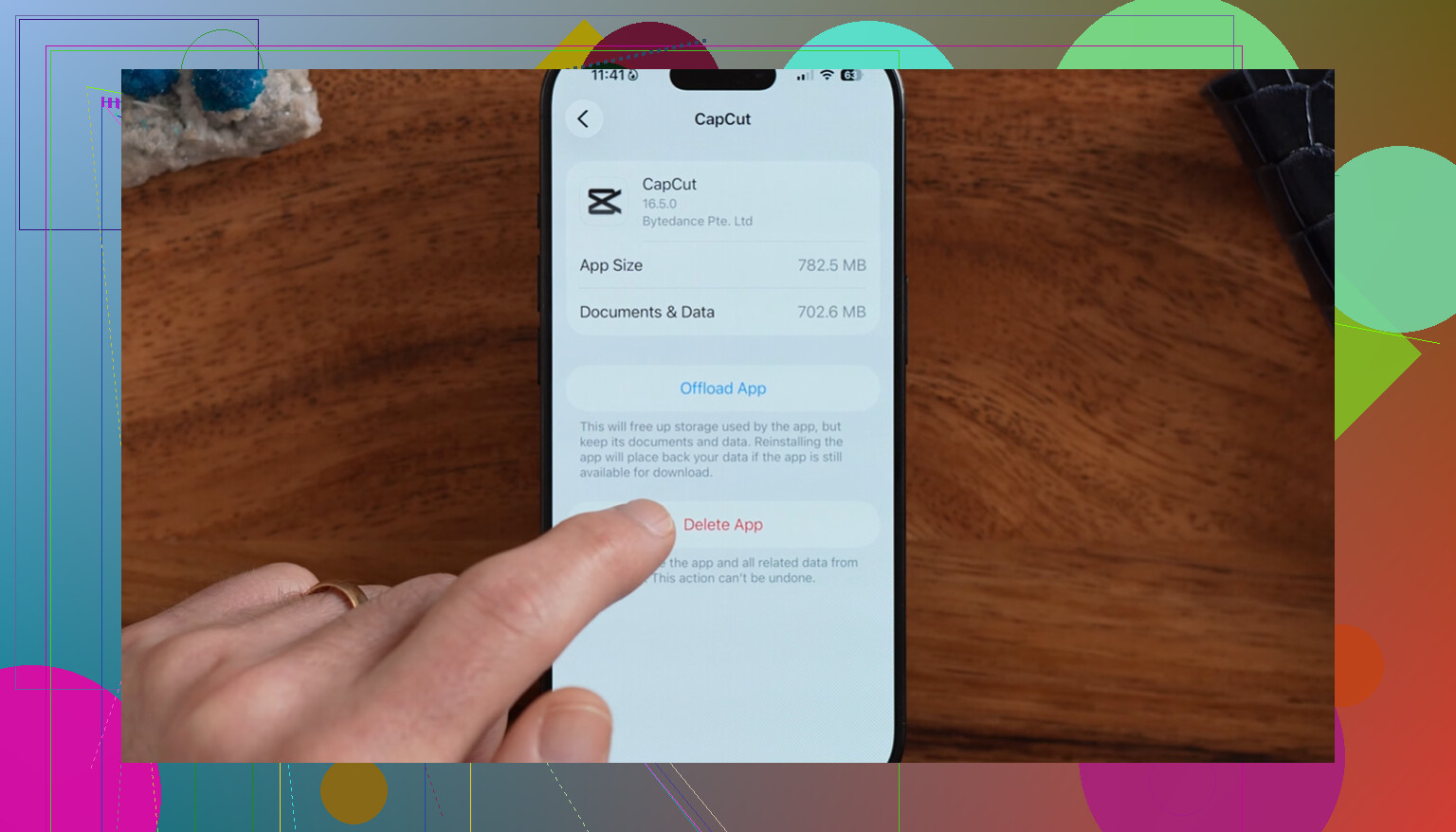
Files works a bit differently. If something is stored in iCloud Drive, you can long-press it and choose Remove Download to clear the local copy without deleting the file from iCloud. That’s usually the safer move if you just need more space on the phone.
To check what’s really taking up storage, go to Settings > General > iPhone Storage. The bar at the top gives you the category breakdown, and the app list shows how much space each app is using. System Data at the bottom is mostly caches, logs, and temporary files, and iOS does not always clean that up right away.
Once your iPhone is down to the last few gigabytes, it can start feeling slow. Apps open slower, the camera can lag, and switching between apps gets choppy because iOS has less room for temporary files and background work. Emptying Recently Deleted helps, but it usually doesn’t fix the whole storage problem. For most people, the photo library is still the big one.
Clever Cleaner is useful for the photo cleanup part that the built-in trash folders don’t really cover. It’s free, with no ads and no subscription.
After clearing the regular trash folders, use it like this:
- Open the Heavies tab first. It sorts files from largest to smallest and shows the exact size, so deleting one or two huge videos can free more space than clearing every Recently Deleted folder.
- Then check Similars. It groups near-duplicate photos and picks a Best Shot from each group, which is much faster than reviewing ten almost identical pictures one by one.
- Look at Screenshots too. Each one shows its file size, and screenshots can pile up more than you’d expect.
- The cleanup runs on the device, so the files are not uploaded to an outside server.
The best order is pretty simple: clear Recently Deleted in Photos first, then check Files, Notes, and Messages. After that, clean up the photo library itself, especially big videos, duplicate-looking shots, and screenshots. If you can keep free space around 10 to 20 percent of the phone’s total storage, iOS tends to behave a lot better.
If the file was in iCloud Drive, it should usually show under Files > Browse > Recently Deleted, but if it came from another location like Google Drive, Dropbox, or “On My iPhone” inside a specific app folder, recovery can depend on that provider or app. In Files, tap Browse until you see the main Browse screen, not just the current folder, then look near the bottom of Locations for Recently Deleted. If you do not see it, tap the three-dot menu and check Edit Sidebar, because some locations can be hidden. Small warning: deleting from Recently Deleted is permanent, and deleting an iCloud Drive file there can remove it from your other Apple devices too, so restore first if you are unsure.
Expect Files to have a safety net, but not a single iPhone-wide trash can. For the Files app, go to Files, tap Browse, then keep tapping Browse or the back arrow until you are at the top-level screen with Locations. Recently Deleted should be listed there. If you are still inside iCloud Drive, Downloads, or a folder, you will not see it.
The catch is that “deleted from Files” does not always mean “handled by Apple’s Recently Deleted.” If the document was in iCloud Drive, it normally lands in Files > Recently Deleted. If it was inside a third-party location like Google Drive, OneDrive, Dropbox, or a folder controlled by another app, you may need to open that app or its website and check its own trash/recycle bin. Files is partly a file manager and partly a window into other storage providers, so the delete behavior is not perfectly consistent.
A small thing people miss: if Recently Deleted is empty or missing, try searching for the file name in Files first, then check iCloud.com if it was an iCloud Drive file. And don’t delete anything from Recently Deleted unless you’re sure, because that is the “really delete it” step, not just tidying up the list.
It is not called Trash on iPhone, and it will not appear inside the folder you deleted from. In the Files app, the place to check is the top Browse screen, not iCloud Drive itself and not Recents.
Open Files, tap Browse at the bottom, then tap the back arrow or the Browse label until you see the screen that lists Locations. That screen usually has entries like iCloud Drive, On My iPhone, Downloads, maybe Google Drive or Dropbox, and Recently Deleted. Open Recently Deleted from there. If you see your documents, long-press one or tap Select, then choose Recover. Don’t choose Delete unless you mean permanent delete.
The detail that trips people up is Recents. If you deleted something while viewing Recents, it may have looked like a normal local file, but Recents is only a mixed view of files from different places. The real storage location still matters. A file from iCloud Drive is usually recoverable through Files > Recently Deleted. A file from Dropbox, Google Drive, OneDrive, a work account, or another provider may go to that service’s own trash instead. In that case the Files app is only showing you the provider’s files, not controlling the whole deletion system.
For “On My iPhone,” check carefully inside Recently Deleted and the original app folder if you know which app created it. Some app folders in Files are basically managed by the app, so if the app has its own document browser or cloud sync, recovery may be there instead. And if you were trying to free space, remember that Recover puts the file back in its original location. If you only wanted to remove an iCloud Drive file from the phone, Remove Download is the safer option than Delete, because Delete removes the actual file from iCloud too.
If Recently Deleted is empty, the next fastest check is iCloud.com for iCloud Drive files, then the trash/recycle bin of whatever service the file came from. If none of those show it, it may already be permanently deleted or the storage provider may not support Files-app recovery in the same way Apple does.