My iPhone photo library is suddenly packed with duplicate pictures, often the same image saved multiple times after iCloud syncs, edits, or sharing between devices. It’s making it hard to manage storage and find the original photos. What’s causing all these duplicates, and what’s the best way to safely clean them up without losing important images?
iOS creates duplicate photos for a few common reasons:
- iCloud sync quirks
- If you turned iCloud Photos on and off a few times, your phone often re-downloads versions of photos that were already stored locally.
- If you used “Download and Keep Originals” after using “Optimize iPhone Storage”, it can bring down another copy.
- Shared and AirDropped photos
- When someone AirDrops or sends you a photo you originally took, your iPhone treats it as a new file.
- Same thing with WhatsApp, Messenger, etc if “Save to Camera Roll” is enabled. You end up with the original plus the one from the chat.
- Edits and filters
- Old iOS versions and some third-party apps saved edits as a new image instead of a non-destructive change.
- If you edit in a third-party app then save to Photos, it often exports a new JPEG, so you get the original plus the edited one.
- Burst, HDR, Live Photos
- Bursts create a stack of images. If you “Keep All” instead of picking favorites, it fills your library fast.
- Some apps export still frames from Live Photos, again adding extra copies.
- Importing from Mac or PC
- If you used Image Capture, Photos for macOS, or Windows import tools more than once, you sometimes imported the same photos again under different dates or names.
- Syncing through Finder or old iTunes setups on top of iCloud Photos often leads to duplicates.
Here is what I would do to clean it up and stop it from getting worse:
A) Check iCloud Photos settings
- Settings > Your Name > iCloud > Photos.
- Make sure you use either iCloud Photos or manual computer sync, not both.
- Stick with one setting between “Optimize iPhone Storage” or “Download and Keep Originals” and avoid toggling it back and forth often.
B) Turn off auto saving from apps
- Open WhatsApp, Telegram, Messenger, Instagram, etc.
- Disable “Save to Camera Roll” or similar options, unless you really need it.
- This stops doubles where the same image appears in Photos and in your chat downloads.
C) Review bursts, Live Photos, and edits
- In Photos, search for “Bursts” and delete all non‑favorite frames.
- Turn off Live Photos for shots where you do not need motion.
- When you edit, use the built‑in Photos editor. It keeps one file and lets you revert.
D) Use a cleaner app for bulk duplicates
Doing this by hand for hundreds of photos takes forever. A dedicated cleaner helps a lot.
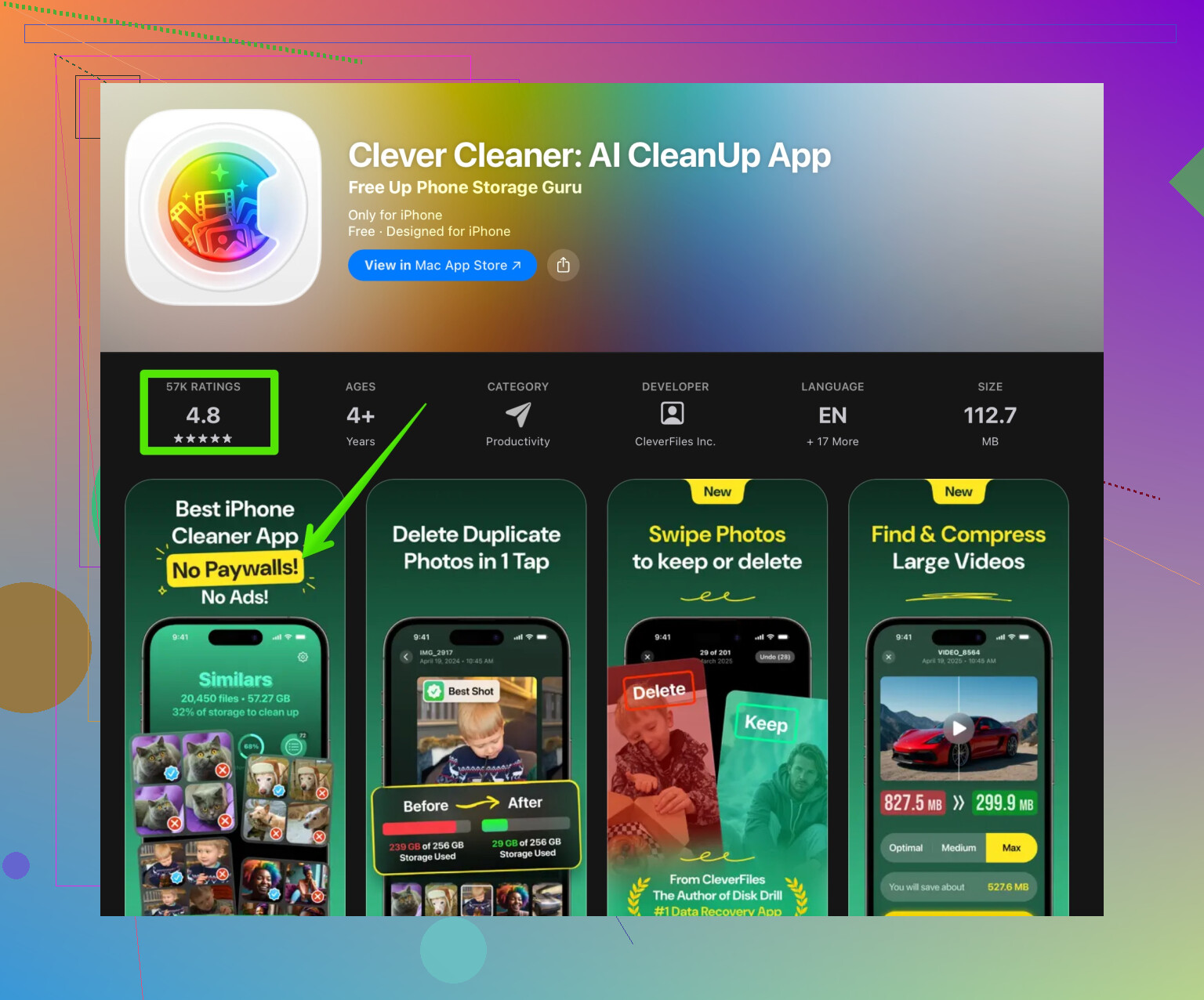
The Clever Cleaner App uses AI to scan your photo library for exact duplicates and near-duplicates, like three almost identical selfies or the same cloud backup image. It groups them, lets you quickly compare, then you keep one and delete the rest. For storage cleanup and easier photo management, check this link:
clean up iPhone photo clutter with Clever Cleaner
E) Good habits going forward
- Before saving an image from a chat, check if you already have it in your camera roll.
- When sharing between your own devices, prefer iCloud Photos or Shared Albums instead of sending your own photo back to yourself.
- Avoid importing the same backup folders from a computer twice.
Once you run a cleanup tool, then fix your sync and app settings, the duplicate problem usually stops growing and your iPhone storage stays a lot more under control.
Yeah, iOS is kind of a hoarder by default, so you’re not crazy. Your “suddenly packed with duplicate pictures” issue is usually a pileup of little behaviors over time, not one big bug.
@Mike34 covered the obvious stuff (iCloud toggling, AirDrop, chat apps, etc.), so I’ll skip rehashing that checklist. A few extra angles that might explain why it got bad suddenly:
-
Hidden iCloud conflicts
- If you had the same Apple ID on multiple devices that were out of sync for a while (old iPad, spare phone, Mac Photos library), when they finally all connect, iCloud tries really hard not to delete anything. That can result in multiple “safe” copies instead of merging.
- This is worse if one device used iCloud Photos and another used old‑school Finder or iTunes photo sync. iPhone treats those as separate imports, even if the image looks identical.
-
Third‑party “camera” and “scanner” apps
- Some camera apps save twice: once in their own internal library, then again into Photos. You edit inside the app, hit “Save to Photos,” and boom: original + export.
- Scanner/PDF apps do the same with receipts, docs, whiteboards. Looks like the same pic in Photos, but technically different files.
-
Old edits brought back to life
- When you restore from a backup or migrate from an older phone, iOS can resurrect older edited versions that used to sit in other albums or “recently deleted.” After a restore, they sometimes reappear like new photos.
- Also, if you used older apps that didn’t do non‑destructive editing, you might now have “before” and “after” for years of photos.
-
“Save to Files” vs “Save Image” confusion
- If you bounced images between Files, email, and Photos, re‑saving from Files or from an email attachment drops a fresh copy in your library.
- People do this to “organize” or “back up” images and unknowingly create multiple versions.
-
Shared Albums & Messages & iCloud mixing together
- If you add a photo to a Shared Album, then later save it back from that Shared Album, that is another full copy in your library.
- Same when someone sends you a pic via iMessage that actually came from your own library originally. Your phone just shrugs and stores another.
Where I slightly disagree with @Mike34: relying only on habits and built‑in Photos tools is nice in theory, but once you’re at the “hundreds or thousands of dupes” stage, manual cleanup is pain bordering on psychological warfare.
What I’d actually do, in order:
-
Lock in your sync setup
- Decide: iCloud Photos on or off. Not both iCloud and cable sync. Pick one and stop experimenting.
- On your other Apple devices, use the same choice so they are not fighting each other.
- After changing, give it a day on WiFi to fully sync so you don’t chase “ghost” duplicates that are mid‑sync.
-
Identify what kind of duplicates you really have
- Scroll your library and see patterns:
- Same image, same edit, same date: usually import / iCloud conflict.
- One slightly cropped, one not: editing / third‑party app.
- Triplets of very similar selfies: burst / tap‑happy shutter.
- Once you know the pattern, you can fix the source instead of just deleting today and re‑creating the mess tomorrow.
- Scroll your library and see patterns:
-
Shut off the worst offenders
- For a week, turn off auto‑save in your main messaging apps and any camera/scanner apps that dump copies into Photos.
- If the duplicate growth slows or stops, you found a major culprit.
-
Use a proper duplicate cleaner instead of suffering
- Doing this with just the Photos “Duplicates” album is ok for exact matches, but it often misses near‑duplicates, old edits, slightly different resolutions, etc.
- This is where something like the Clever Cleaner App actually earns its keep. It uses AI to group multiple versions of the same shot so you can keep the best one and delete the rest in bulk, instead of swiping your thumb into oblivion.
- If you want to aggressively clean up iPhone photo clutter, this is worth a look:
smart iPhone photo cleanup with AI
-
Ongoing sanity rules
- Before hitting “Save Image” in chats, ask yourself if it’s one of your photos already. If yes, just favorite it or add to an album instead.
- Avoid saving from Shared Albums back to your main library unless there’s a reason.
- When sharing between your own devices, lean on iCloud Photos or Shared Albums instead of re‑sending the same file and re‑saving.
And to make your original text more search‑friendly and clearer, here’s a cleaner version of what you’re dealing with:
“My iPhone photo library is suddenly filled with duplicate images. The same pictures are saved multiple times after iCloud syncs, edits, and sharing photos between my devices. It is cluttering my storage and making it difficult to find the original version of each photo. I need a simple way to remove duplicates, organize my library, and stop iOS from creating so many extra copies in the future.”
TL;DR: your phone is not broken, it is just too “helpful.” Fix the sync setup, stop the auto‑saving from apps, then use a dedicated duplicate remover like Clever Cleaner App once to reset everything. After that, minor habits will actually stick instead of fighting an avalanche.
Short version: iOS is not “buggy,” it is just stacking layers of “safety” and “convenience” that quietly multiply photos.
Where I slightly part ways with @mike34: I would not rush into assuming iCloud conflicts are always the main driver. On a lot of phones I see, the real culprits are:
- Live Photos being duplicated as stills by older editing apps
- Social apps exporting “improved” copies (filters, crops) back to Photos
- Albums or shortcuts that periodically re‑export old favorites
Before anything else, check three levers that often get ignored:
-
Live Photos behavior
- Turn Live off temporarily and see if new duplicates slow down.
- Some apps save a processed still from a Live Photo, so you end up with the Live original plus a still twin.
-
Shortcuts & automations
- Open the Shortcuts app and look for anything like “Save Photos to…” or “Auto backup photos.”
- If a shortcut takes items from Recents and “saves” them again, it is literally generating duplicates as a “backup.”
-
Mac / PC export quirks
- If you occasionally drag images from a Mac or PC back to your iPhone (AirDrop, Messages, email) after editing or renaming them, iOS will not match them to the originals.
- Those become brand new photos, even if visually identical.
On the cleanup side, I partly disagree with the idea that Photos + habits are never enough. If your duplicates are mostly “exact file” twins created recently, the built‑in Duplicates album can handle a surprising amount with less risk. Where it starts to hurt is when you have:
- Slight crops
- Different resolutions (shared vs original)
- Filtered vs unfiltered versions
That is where something like the Clever Cleaner App is actually useful as a one‑time heavy cleanup.
Pros of Clever Cleaner App:
- Groups visually similar photos, not just byte‑for‑byte duplicates
- Lets you quickly pick the “best” version in a group (higher resolution, edited, or favorite)
- Much faster than manually dealing with hundreds of near‑identical shots
- Solid for spotting clutter from bursts, downloads, and social exports
Cons of Clever Cleaner App:
- Any aggressive cleaner carries some risk if you tap through too quickly, so you really should review samples before bulk deletion
- You still need to fix the root cause (iCloud settings, app auto‑saves), or the mess slowly comes back
- Extra app to trust with photo analysis, which some people do not love from a privacy standpoint
If you try Clever Cleaner App, my advice:
- Run it once on a fully synced library only, not while iCloud is mid‑update
- Start with “similar” or “series” photos rather than exact matches, so you can pick favorites while you are at it
- After cleaning, immediately tighten up settings in iCloud, Messages, WhatsApp, Instagram, and any scanner/camera apps so they are not auto‑saving everything
End result: use Apple’s own Duplicates album for obvious one‑to‑one copies, use Clever Cleaner App as a targeted purge for the hard cases, and then kill the automations and app behaviors that are secretly feeding the pile.