My iPhone has lots of free storage, but apps still lag, scrolling stutters, and even basic tasks like opening Messages or the Camera take several seconds. I’ve already restarted the phone, closed background apps, and updated iOS, but nothing seems to fix the slow performance. What else can I check or change to figure out what’s causing this and speed my phone back up?
iOS slows down for a bunch of reasons that are not about free storage. I would check these in order.
-
Check battery health
• Settings > Battery > Battery Health & Charging
• If Maximum Capacity is under ~85% or it says “Performance management” is applied, the CPU runs slower to avoid shutdowns.
• If so, performance only improves with a battery replacement or by turning off performance management, but that can cause random shutdowns. -
Check for system updates
• Settings > General > Software Update
• Install the latest iOS, then reboot.
• Some slowdowns come from old versions of iOS with bugs, later patches fix them. -
Look at background processes
• Settings > General > Background App Refresh
• Turn it off for apps you do not need refreshing, especially social media, email, cloud storage, banking.
• Also turn off automatic Downloads in Settings > App Store. -
Check storage type, not only free space
• If you have 50+ GB free and things still lag, the issue is often indexing.
• After big updates or after adding lots of photos, iOS re-indexes Photos and Spotlight.
• Plug into power, connect to Wi Fi, leave the phone locked for 1–2 hours so indexing can finish. -
Disable system animations
• Settings > Accessibility > Motion > Reduce Motion > On
• Settings > Accessibility > Display & Text Size > Reduce Transparency > On
• This makes older iPhones feel faster because it lowers animation load on the GPU. -
Clear Safari and app cruft
• Settings > Safari > Clear History and Website Data.
• Delete and reinstall apps that feel slow, like Facebook, Instagram, TikTok. Their caches grow huge and slow things down.
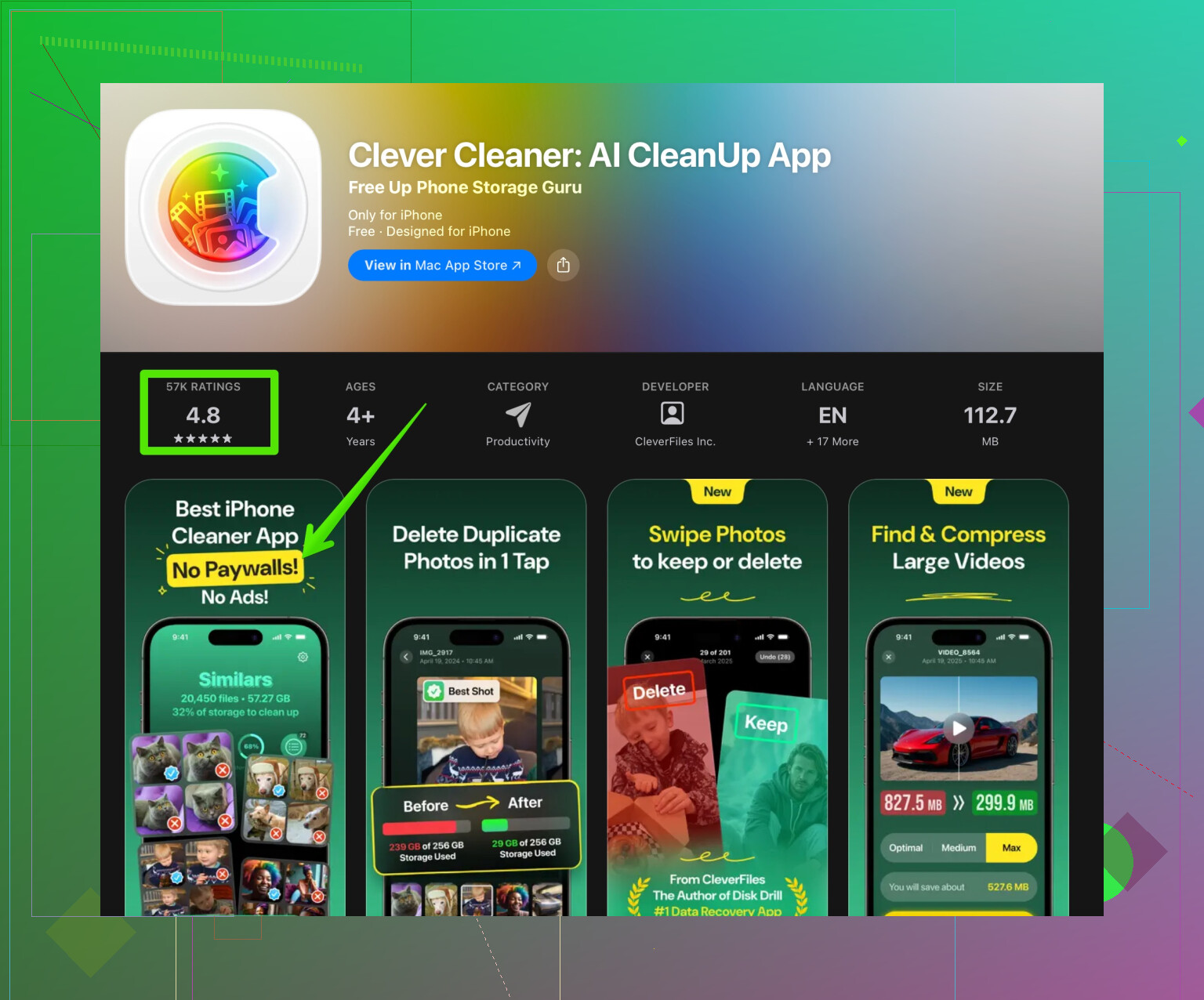
• Messy photo libraries also hurt performance in Photos, Messages, iCloud.If you have a messy gallery with lots of duplicates or junk screenshots, a cleanup tool helps. The Clever Cleaner App uses AI to detect duplicate photos, bad shots, and big videos that waste resources. Check this link for a quick way to speed up your photo library and free system resources:
clean up and speed up your iPhone with Clever Cleaner -
Check free RAM pressure
iPhones with 3–4 GB RAM start to struggle with heavy apps.
• If apps reload often or keyboard lags, it points to RAM, not storage.
• Remove heavy widgets from the Home Screen and Lock Screen.
• Remove VPN apps or “security” apps, they sometimes hook into the network stack and slow things. -
Reset settings, not all data
• Settings > General > Transfer or Reset iPhone > Reset > Reset All Settings.
• This keeps your data but resets Wi Fi, Bluetooth, wallpapers, etc.
• Often fixes weird lag after multiple major iOS upgrades. -
Test in a “clean” state
• Backup with iCloud or iTunes.
• Do Settings > General > Transfer or Reset iPhone > Erase All Content and Settings.
• Set up as New iPhone first, without restoring backup.
• If the phone feels fast as new, the problem sits in apps or settings. Then restore the backup and see if it slows again. -
Hardware limits
If your iPhone is older than iPhone X / 8, newer iOS versions stress it.
Lag in Camera and Messages on old hardware is normal, especially with big chat histories and a huge photo library.
If you want quick wins, I would:
• Clean Safari data.
• Use Clever Cleaner App to sort your photo and video mess.
• Turn off unneeded background refresh.
• Reduce Motion and Transparency.
• Check battery health and consider a battery swap if it is low.
If storage isn’t the issue and you already rebooted and updated, then you’re running into the “everything except storage” problem that Apple never explains clearly.
@viaggiatoresolare covered the classic stuff like battery health and animations, so I’ll skip repeating that and hit a few angles they didn’t lean on as much (or I slightly disagree with).
1. Kill the “closing apps helps” habit
You mentioned closing background apps. Honestly, that often makes things worse on iOS.
Every time you swipe them away, iOS has to reload them from scratch, which is slower and hits RAM/CPU harder.
For a while, stop force‑quitting apps unless they are frozen or misbehaving. Let iOS manage it. If things speed up a bit, you know that habit was part of the lag.
2. Check for storage fragmentation style pressure
Even with lots of free space, performance can tank when the system is juggling tons of small files:
- Thousands of text threads in Messages with tons of photos or videos
- Years of WhatsApp/Telegram chat media
- Massive photo library with duplicates, bursts, Live Photos, etc.
This bogs down indexing and database lookups, especially in Messages and Photos, which you said are slow.
Helpful tweaks:
-
Messages
- Settings > Messages > Keep Messages > set to 1 Year or 30 Days if you can live with that.
- Delete a few huge group chats with tons of media and gifs. That alone can make Messages feel new.
-
Third‑party chats
- In WhatsApp / Telegram: clear big chats, export media if you need it, then delete it from the app.
-
Photos cleanup
This is where a tool actually helps. A bloated photo library slows down searching, “Memories,” and sometimes even the Camera app preview. An app like Clever Cleaner App uses AI to find duplicates, blurry shots, and massive videos that are just sitting there wasting resources. If your gallery is a disaster, this can make a real difference.
Check this out: declutter your iPhone photos and boost performance
3. Focus on Camera & Messages specifically
You mentioned those two taking several seconds. That points to:
-
Camera
- Turn off Live Photos for a while and see if it gets snappier.
- In Settings > Camera, disable Smart HDR, Macro Control, etc., just to test.
- Try switching to Video, then back to Photo. If that hangs, it is struggling with computational stuff, not storage.
-
Messages
- Turn off iMessage “Effects” (Settings > Accessibility > Motion > Auto‑Play Message Effects off).
I slightly disagree with @viaggiatoresolare here: reducing motion is nice, but if you go too aggressive, the UI feels janky. I’d start just with message effects off instead of nuking all animations.
- Turn off iMessage “Effects” (Settings > Accessibility > Motion > Auto‑Play Message Effects off).
4. Look for “problem apps” that hog everything
Some apps don’t show up as obviously bad but still hammer your system:
- VPN apps
- Fake “security” / antivirus apps
- System‑wide content blockers / ad blockers
- Keyboard apps
Temporarily:
- Delete any VPN, antivirus, weird “cleaner” apps other than system‑friendly ones.
- Switch back to the default Apple keyboard only.
Use the phone for a few hours like that. If it suddenly feels smoother, you found the culprit class.
5. Thermal throttling: check if it’s getting hot
Even with good battery health, your iPhone will underclock itself if it gets warm:
- Heavy gaming, maps navigation, video calls
- Fast charging in a warm environment
- Using it in direct sunlight
If you notice lag mostly when it’s warm to the touch, that’s thermal throttling. Using a thick case can trap heat too. Try:
- Removing the case while charging or gaming
- Not using it heavily while it is plugged in and hot
- Letting it cool a bit and then testing performance again
6. System “gunk” that survives basic resets
Instead of only “Reset All Settings” (that @viaggiatoresolare mentioned), another test:
-
Turn off Siri & Search suggestions for a bit:
Settings > Siri & Search > turn off “Show on Home Screen,” “Suggestions in Search,” etc.
This reduces constant indexing and can speed up older devices that are choking on all the “smart” features. -
Turn off Analytics & Improve stuff:
Settings > Privacy & Security > Analytics & Improvements
Turn off Share iPhone Analytics, Share iCloud Analytics, etc.
It’s small, but on borderline devices every background task matters.
7. When a clean install is worth it
I agree with the “test as new iPhone” approach, but I’ll be honest: for lots of people, restoring an ancient backup is what keeps dragging junk from phone to phone.
If you’ve been restoring from older iPhones for years, consider:
- Backup only what really matters (photos in iCloud, passwords in Keychain, contacts in iCloud).
- Wipe the phone.
- Set up as new and manually reinstall only what you actually use.
This is extreme, but if your phone suddenly feels like new, that proves the slowdown was from years of accumulated app data and cruft rather than the hardware.
8. Your original topic description, cleaned up for clarity
Why is my iPhone running slow even with plenty of free storage? My iPhone has lots of available space, but apps still lag, scrolling stutters, and even basic tasks like opening Messages or the Camera take several seconds. I’ve already restarted the phone, closed background apps, and updated iOS, yet the performance issues continue. I’m trying to figure out what else could be causing this slowdown and how to make my iPhone fast and responsive again.
If I were you I’d do this in order, very roughly:
- Stop force‑quitting apps and see if that alone helps.
- Clean Messages & chat media, then trim Photos (use Clever Cleaner App if your gallery is chaos).
- Disable VPN / antivirus / extra keyboards temporarily.
- Turn off some Siri & Search features and message effects.
- Only if it’s still bad, test a clean install without restoring your old backup.
If even a totally fresh setup is slow and the phone isn’t very old, then it’s time to suspect hardware: battery, logic board, or just a model that’s aging out under modern iOS.
Quick checklist that targets the stuff @viaggiatoresolare did not go deep on:
-
RAM pressure & age of SoC
Free storage does not help if the device is RAM‑starved. Older iPhones on recent iOS versions constantly evict apps from memory and reload interfaces. That feels like lag even with 50+ GB free.- If your phone is an XR / 11 / SE 2 or older, that mismatch between modern iOS features and limited RAM / CPU is likely a core issue.
- In that case, turning off some newer “smart” features (widgets, Live Text, Visual Look Up) can help more than toggling animations.
-
Background processes you do not see
Spotlight, Photos indexing, and iCloud sync can drag things down for days after big changes.- Go to Settings > Battery and check the “Last 24 Hours / 10 Days” list. If “Photos,” “Mail,” or “System Services” are hogging background activity, that is why simple tasks feel slow.
- Temporarily disable iCloud Photos sync and Background App Refresh for anything non‑essential. If the phone suddenly feels snappier after a few hours, you found a bottleneck.
-
Keyboard & text input slowdown
Messages lag is often the keyboard, not the app.- Remove third‑party keyboards entirely, not just switch away from them.
- Reset keyboard dictionary (Settings > General > Transfer or Reset iPhone > Reset > Reset Keyboard Dictionary).
If opening a text field is what stutters, this is a big one.
-
System logs & crash loops
Repeated background crashes can slow everything while the system constantly retries.- Settings > Privacy & Security > Analytics & Improvements > Analytics Data.
If you see the same app or service showing up in logs over and over (like dozens of entries per day), delete or reinstall that app.
This is a blind spot most people ignore, and it can matter more than storage.
- Settings > Privacy & Security > Analytics & Improvements > Analytics Data.
-
Offloading vs deleting apps
I slightly disagree with the usual “just offload rarely used apps.” App data that survives offloading can still leave databases and hooks hanging around. If your phone has been migrated through multiple iPhones, it is sometimes cleaner to fully delete problem apps, then reinstall from scratch.
Use this on big social apps, map apps, and email clients that have been on the device for years. -
Photo & video bloat as a database problem
Not just capacity. The Photos app and its ML features maintain multiple databases and previews. Huge libraries slow queries and indexing, which can indirectly hit the Camera and share sheets.
This is where a declutter tool is actually reasonable. The Clever Cleaner App is useful if you have:- Tons of near‑duplicates, bursts, screenshots, and long videos
- Years of random media from chats and social
Pros: - Fast way to find duplicate and similar photos
- Good at surfacing giant videos and junk screenshots
- Can free up a surprising amount of space and reduce indexing load
Cons: - Needs careful review so it does not hide photos you actually like
- Another app with access to your photo library, so privacy‑sensitive users may not love that
- Free versions of these tools often limit bulk actions, so expect some in‑app purchase friction
If you prefer manual control, you can still use it as a “scanner” to see problem areas, then delete items yourself.
-
Network‑related slowness that feels like device lag
Some “slow” behavior is actually the phone waiting on the network.- Disable Wi‑Fi Assist and any “Smart Data” style toggles.
- Temporarily remove VPN profiles and custom DNS profiles installed via configuration profiles.
If apps open fast but content loads slow, then your bottleneck is networking, not performance.
-
Check for profile / MDM leftovers
If the phone was ever used with a work / school profile or some security management, leftover configuration profiles can keep running checks and restrictions in the background.- Settings > General > VPN & Device Management
Remove anything you do not explicitly need. That alone has fixed “mystery lag” for quite a few users.
- Settings > General > VPN & Device Management
-
Hardware hints
If a clean install with minimal apps is still choppy and you are not restoring from an old backup, suspect hardware:- Random UI freezes plus rare reboots can indicate storage wear or logic board issues.
- Severe lag when the phone is cool and mostly idle is not normal even on older models.
In that case, a diagnostics run at an Apple Store or authorized repair center is worth it.
If you stack what @viaggiatoresolare already suggested with:
- deep keyboard cleanup
- aggressive background / indexing trims
- a photo library audit with something like Clever Cleaner App
- removal of profiles, VPNs and long‑running crashy apps
you usually get the phone to a point where its remaining lag is just the honest limit of the chip and RAM rather than fixable software sludge.
Good coverage on RAM pressure, background indexing, keyboard, crash loops, heavy apps, Photos DB, network, profiles, hardware. One simpler path: check battery throttling. Settings > Battery > Battery Health & Charging. If Maximum Capacity under 85% or Performance Management is on, your CPU gets slowed to prevent shutdowns. That feels like lag even with free storage. Replace the battery at Apple or a trusted shop. Cost is often under $100 in the U.S. After replacement, disable Low Power Mode for testing. Many users report instant snappier UI, faster app launches, quicker camera open. Reboot teh phone.
Before you touch any of these fixes, check Settings > Battery and look at the activity graph for the last 10 days. If something like Photos or a specific app is pinned at heavy background use, that tells you where the lag is coming from instead of guessing through twenty toggles. Half the advice above works, but stacking all of it at once means you’ll never know which change actually helped.
On the photo library point everyone keeps circling back to, it’s real, but I’d check one thing first: if iCloud Photos is set to Optimize iPhone Storage, your phone is constantly shuffling thumbnails and full-res versions in and out, and that alone can make Photos and Camera feel sluggish even with tons of free space. Clean the library if it’s a mess, sure, and something like Clever Cleaner is fine for spotting duplicates and giant videos, but it won’t fix the sync churn. That’s a settings problem, not a clutter problem.