I deleted a lot of photos, apps, messages, and other files to free up iPhone storage, but the available space barely changed. I already checked recently deleted items and restarted the phone, but storage still looks full. What else could be taking up space, and how can I fix it?
Yeah, that storage bar can be maddening. You delete a bunch of photos, remove apps you barely use, check Settings again, and somehow it looks like nothing happened. It’s not always a real bug, but iOS can be slow and weird about actually updating what space is available.
The first thing I’d check is the boring one: Recently Deleted. Photos you delete don’t disappear right away. They sit there for up to 30 days and still count against your storage until you clear them out manually. Open Photos, go to Albums, scroll down to Utilities, open Recently Deleted, and hit Delete All. If you deleted stuff from the Files app too, check the deleted items there as well.
After that, restart the phone. Not just close apps, actually power it off and turn it back on. Sometimes the storage screen is basically working off stale info and doesn’t recalculate right away. I’ve had space suddenly show up after a reboot because iOS finally refreshed the storage scan.
One thing that can make cleanup feel fake is iCloud Photos with “Optimize iPhone Storage” turned on. If that’s enabled, your phone may only be keeping smaller local versions while the full-size originals live in iCloud. So deleting a ton of pictures might not free as much local space as you expect, especially if most of what was on the phone was already optimized.
If the phone still says it’s full, look at System Data. That used to be called “Other,” and it’s basically where a bunch of caches and leftover junk pile up. Safari data, streaming app caches, failed update files, random app leftovers, that kind of thing. If System Data is huge, like over 20GB, something is probably stuck. You can try clearing browser cache and offloading apps, but doing it manually gets old fast.
What finally helped me was using a cleaner app, which I was skeptical about because most of them are spammy or full of ads. The one I ended up using was Clever Cleaner. The reason I stuck with it is that it’s free, doesn’t shove ads in your face, and doesn’t do the fake “free trial for 3 days, then surprise billing” thing.
It also catches stuff the normal Photos app doesn’t make easy to deal with. The Similars tab finds near-duplicate shots, like when you took ten versions of the same photo and only needed one. It picks what it thinks is the best one and lets you clear the extras quickly. The Heavies tab is good too because it sorts videos and photos by file size, so you can see which 4K clips are actually eating the storage. The Screenshots section was the one that surprised me, because it showed the file size for each screenshot and made it obvious how much junk I had saved. It also works on-device, so your photos aren’t getting uploaded somewhere random just to scan them.
There’s also a weird fix people use when deleted photos are stuck but don’t show up normally. Go to Settings > General > Date & Time, turn off “Set Automatically,” then set the year back by about two years. After that, check Recently Deleted again. Sometimes old “ghost” photos show up there and you can delete them properly. Just make sure you switch the date and time back afterward, because apps can break when your phone thinks it’s in the wrong year.
If none of that works and System Data is still out of control, the nuclear option is a factory reset. Back up to a computer first. If the storage database or system cache is really messed up, a clean iOS install is usually the only way to fully wipe that junk out.
I’d start with Recently Deleted, then reboot, then check whether the space is actually being taken up by big videos, similar photos, screenshots, or System Data. Usually one of those is the reason the storage bar refuses to move.
Don’t expect the storage number to change instantly, especially right after deleting a huge batch. iOS may need time plugged in, on Wi‑Fi, and locked before it finishes reindexing photos, messages, and app storage.
@mikeappsreviewer is right about System Data, but I’d wait overnight before doing anything drastic like a reset. If it still hasn’t moved the next day, then I’d start suspecting stuck cache or a bad storage report.
Be careful assuming “Offload App” and “Delete App” are doing the same cleanup, because offloading keeps the app’s documents and data on the phone. If you offloaded a bunch of apps, the icons disappear but the junk that belongs to them can still be sitting there. Go to Settings > General > iPhone Storage, tap a few of the biggest apps, and check whether it says Delete App or Offload App. For storage problems, Delete App is the one that actually clears the app plus its local data.
I agree with @shizuka that the number can lag, but I wouldn’t stare at the colored bar too much. It is often less useful than the actual app list underneath it. Sort of mentally ignore the categories and look for the thing still taking real space: Messages, Photos, Safari, Spotify, TikTok, Podcasts, Mail, Maps, or whatever has a giant “Documents & Data” number. Some apps are terrible about keeping downloads and cache even after you think you cleaned them inside the app.
A quick test is to check Settings > General > About > Available instead of only the iPhone Storage graph. If Available has gone up, you probably did free space and the storage screen is just being slow or weird. If Available barely moved too, then something large is still stored locally. At that point I’d go app by app rather than doing a factory reset right away, because one bloated app cache can look like a mysterious iOS problem when it’s really just old downloads or saved media.

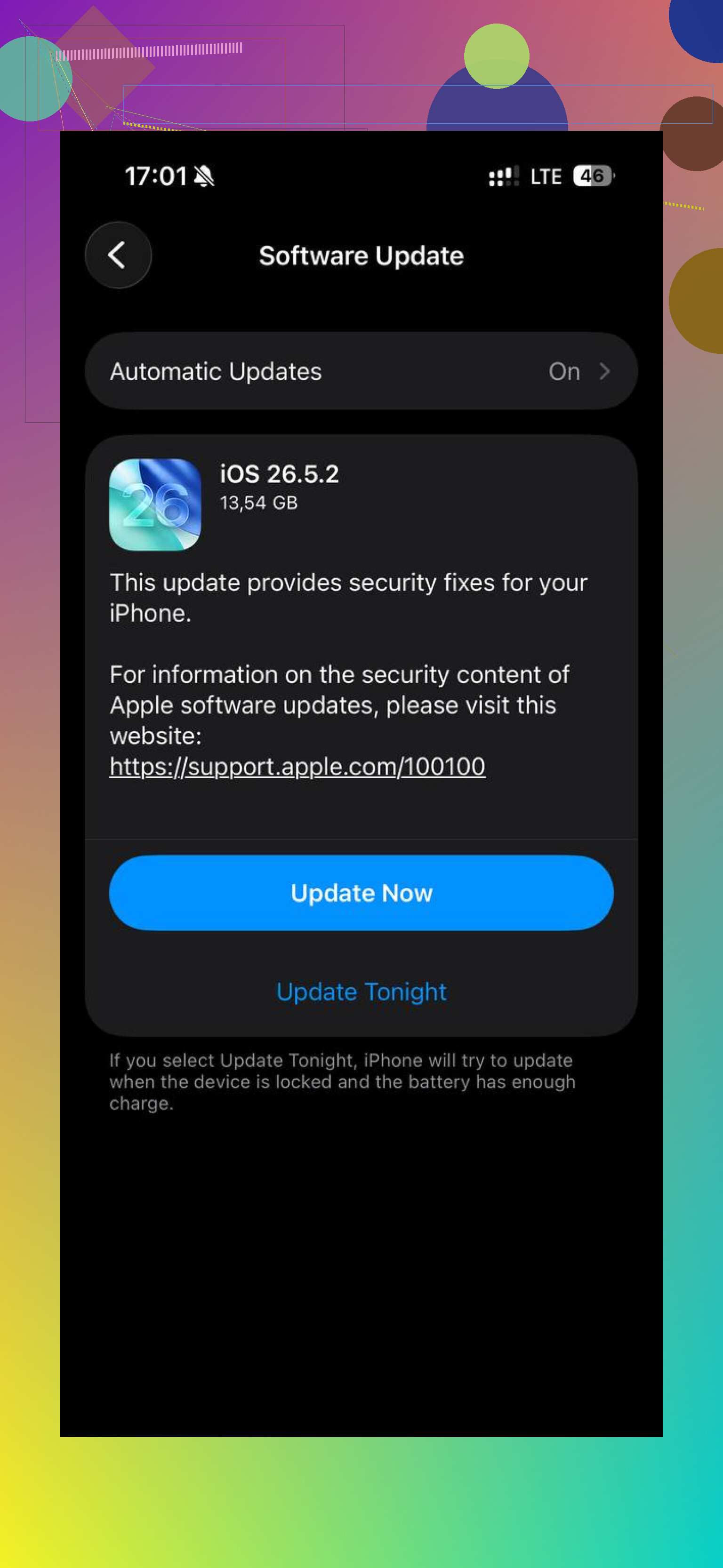
Check the app list for a downloaded iOS update before you keep deleting personal stuff. Go to Settings > General > iPhone Storage and scroll through the list, not just the color bar. Sometimes there is an “iOS” update file sitting there that can be several GB. If you are not installing it right now, tap it and delete the update. That space will come back a lot faster than hunting for another hundred screenshots.
I agree with the others that the storage graph can lag, but I’d be a little skeptical of treating “System Data” as one big mystery bucket every time. A pending update, offline maps, podcast downloads, music downloads, or video app downloads can all make it look like your cleanup did nothing. The giveaway is usually in the app list, where one app has a weirdly large size compared with how much you think you use it.
Cleaner apps like Clever Cleaner can be useful for finding big videos or duplicate-ish photos, but they are not going to clear every app’s private cache because iOS does not let apps freely clean each other’s data. So if Photos is not the main problem, don’t spend all your time there. Look for downloaded media, delete any unused iOS update file, then leave the phone plugged in and locked for a while so it can recalculate.
Try deleting and reinstalling one bloated app. Open Settings > General > iPhone Storage, then pick the largest streaming, social, or podcast app. Confirm your account data is synced, tap Delete App, then reinstall it from the App Store.
Use Delete App, not Offload App. Offloading keeps documents and cached data. A single app might hold 5 to 20 GB of hidden downloads or temp files. Reinstalling gives it a clean local folder, and the free space often updates within a few mins.
That date-and-time rollback trick @mikeappsreviewer mentioned can quietly break subscriptions, two-factor logins, and some apps that check the clock, so I’d skip it unless you’re desperate. Honestly the most overlooked hog is Messages holding years of videos and attachments, so check Settings > Messages and set it to keep messages for a year instead of forever before you go reinstalling apps.