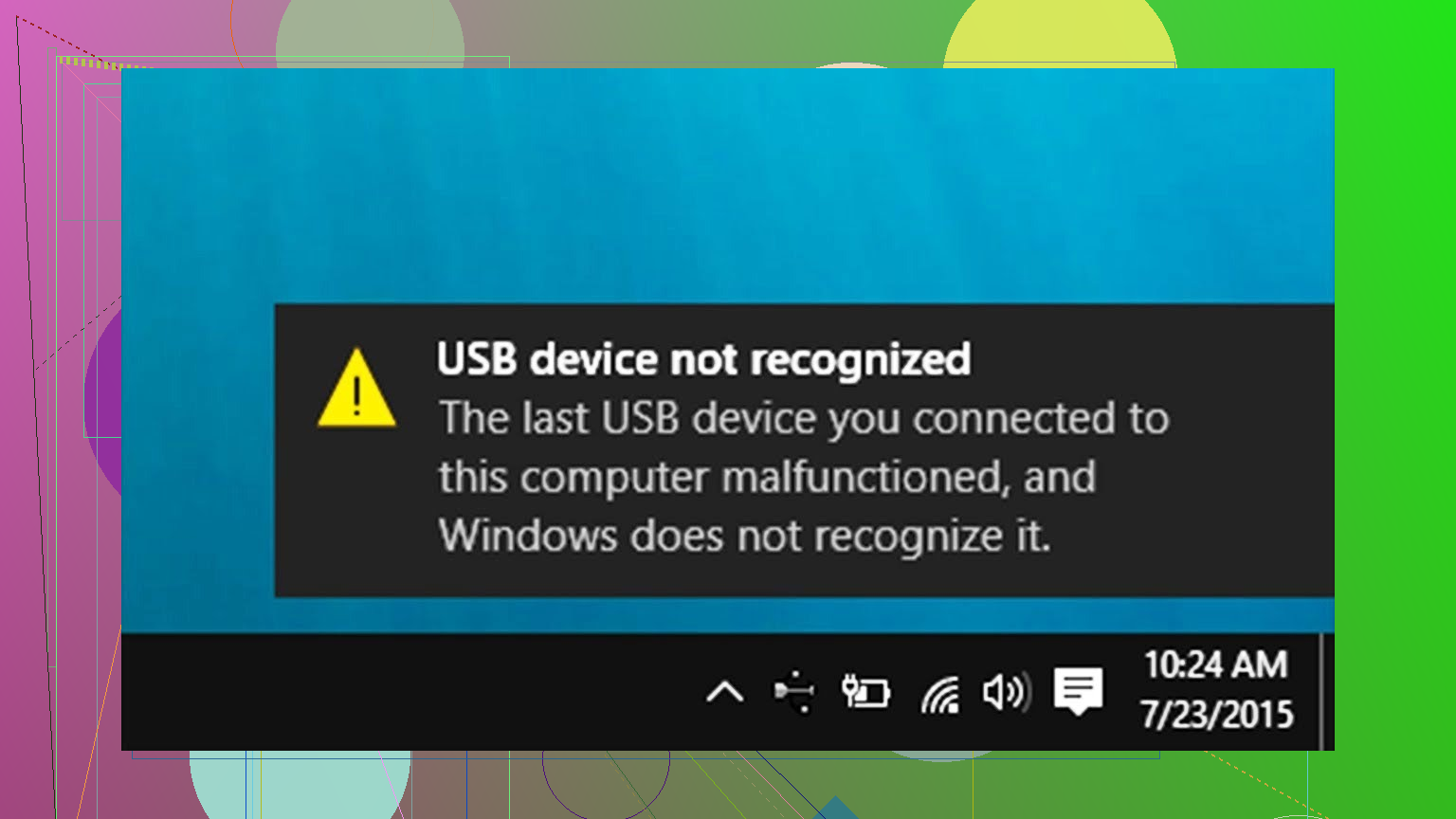
Windows 11 suddenly stopped recognizing one of my USB devices that used to work fine. I’ve tried different ports, restarting the PC, and even another cable, but it still shows a “USB device not recognized” error. I need help figuring out if this is a driver issue, a power setting problem, or something wrong with the device itself, and what steps I should take to fix it.
Had this same thing on my Windows 11 desktop a few months ago. Random device connect/disconnect sound every few minutes, no USB sticks, no phones, nothing. I thought the speakers were haunted.
Here is what stopped it for me, step by step.
- Clean up USB stuff in Device Manager
What I did:
- Right-click Start
- Click Device Manager
- Scroll down to “Universal Serial Bus controllers”
Inside there:
• Anything with a yellow warning icon:
- Right-click
- Uninstall device
- If it gives you an option to remove the driver, I left that unchecked and only removed the device entry.
Then I went to:
• Top menu: View → Show hidden devices
After turning that on:
• In “Universal Serial Bus controllers” again
• Anything greyed out or ghosted
- Right-click
- Uninstall
I restarted the PC after clearing all the broken and ghost USB entries.
For me, the random USB sound stopped right after that reboot.
- Physically check the USB ports
This part matters more than I expected.
I grabbed a flashlight and looked into every USB port on the case and the motherboard.
Things to look for:
• A bent metal tab
• A tiny broken USB tip stuck inside
• Dust or crumbs packed into the port
• Port slightly pushed in or crooked
One time on another machine, I had half a broken USB dongle jammed inside a rear port. Windows kept thinking some device was connecting and disconnecting every few seconds. Pulling that fragment out with tweezers fixed it instantly.
If something is stuck:
• Shut the PC down
• Flip the PSU switch off or unplug it
• Use a toothpick or plastic tool, not metal, to pull it out
- If Device Manager does not help
I did some extra reading when I had this, because I thought it was a bad motherboard at one point.
There are a bunch of similar USB and hardware recognition issues discussed here:
https://discussion.7datarecovery.com/
Search around their USB or hardware sections. I found a few threads there that mentioned the same constant connect/disconnect sound tied to flaky USB controllers and ghost devices.
- Power drain trick for the USB controller
This one sounded dumb to me the first time I tried it, but it has worked on multiple machines.
Steps I followed:
-
Shut Windows down fully
- Hold Shift while clicking Shutdown, or
- Disable Fast Startup first if you use it
-
Unplug the power cable from the wall or switch the PSU off
-
Hold the power button for about 30 seconds
- No lights will turn on
- The idea is to discharge the remaining power and reset USB controller state
-
Plug the cable back in
-
Turn the PC on as normal
On my system, the USB sound issue went away after doing Device Manager cleanup + this power drain. It also fixed a weird case where Windows would not see a specific USB drive on the front ports but worked on the back ones.
If I had to order the steps for you:
- Check the ports physically. Make sure nothing is jammed or bent.
- Clear bad and hidden USB devices in Device Manager. Reboot.
- Do the full power drain reset.
- If it keeps happening, start digging through threads on https://discussion.7datarecovery.com/ for similar motherboard or hub issues.
That combo has fixed it every time I have hit this on Windows 10 and 11 so far.
Couple of things you can try that are different from what @mikeappsreviewer suggested.
-
Check if the device fails on every machine
• Plug the same USB device into another Windows 10 or 11 PC.
• If it fails there too with a similar “USB device not recognized” error, the device is likely faulty.
• If it works fine elsewhere, focus on your Windows install or motherboard. -
Check USB power limits and hubs
• If it is a portable HDD, audio interface, capture card, USB Wi-Fi, etc, they draw more power.
• Avoid front case ports and cheap unpowered USB hubs. Plug it directly into a rear port on the motherboard.
• For high power devices, use a powered USB hub with its own adapter.
• In Device Manager, open “Universal Serial Bus controllers” and open each “USB Root Hub (USB 3.0)” or similar, go to Power Management, uncheck “Allow the computer to turn off this device to save power”, then reboot. -
Turn off USB selective suspend in Power Options
• Right click Start, choose Power Options.
• Additional power settings.
• Next to your active plan, click “Change plan settings”.
• “Change advanced power settings”.
• Under USB settings, set “USB selective suspend setting” to Disabled.
• Apply, OK, then restart.
This helps when Windows cuts power to ports and never brings them back correctly. -
Check for chipset and USB controller driver updates
Windows Update is often behind on motherboard drivers.
• Identify your motherboard model with a tool like CPU-Z or from the box/manual.
• Go to the board vendor site, download the latest “chipset” and “USB” drivers for Windows 11.
• Install those, then reboot.
For laptops, do the same on the laptop vendor support page. This fixes a lot of random “device not recognized” issues after big Windows updates. -
Disable Fast Startup
Fast Startup keeps some hardware state between boots. USB controllers sometimes get stuck.
• Control Panel > Power Options > “Choose what the power buttons do”.
• Click “Change settings that are currently unavailable”.
• Uncheck “Turn on fast startup (recommended)”.
• Save, then fully shut down, wait 10 seconds, then start again.
I disagree a bit with relying only on the power drain trick. Fast Startup off plus one clean shutdown often fixes what the power button hold does. -
Check for error codes in Device Manager
• When you get “USB device not recognized”, open Device Manager.
• Look under “Universal Serial Bus controllers” or “Other devices” for an “Unknown USB Device”.
• Right click, Properties, check the error code on General tab.- Code 43 often means a failed device or firmware issue.
- Code 10 often means a bad driver or power problem.
• If the device has its own driver package, reinstall it.
-
If it is a USB storage device
If the drive shows in Disk Management but not in Explorer, Windows sees the hardware but fails at filesystem level.
• Right click Start, choose Disk Management.
• Look for a disk with no drive letter or showing RAW.
• If it is RAW or asks to format, stop if you care about the data.
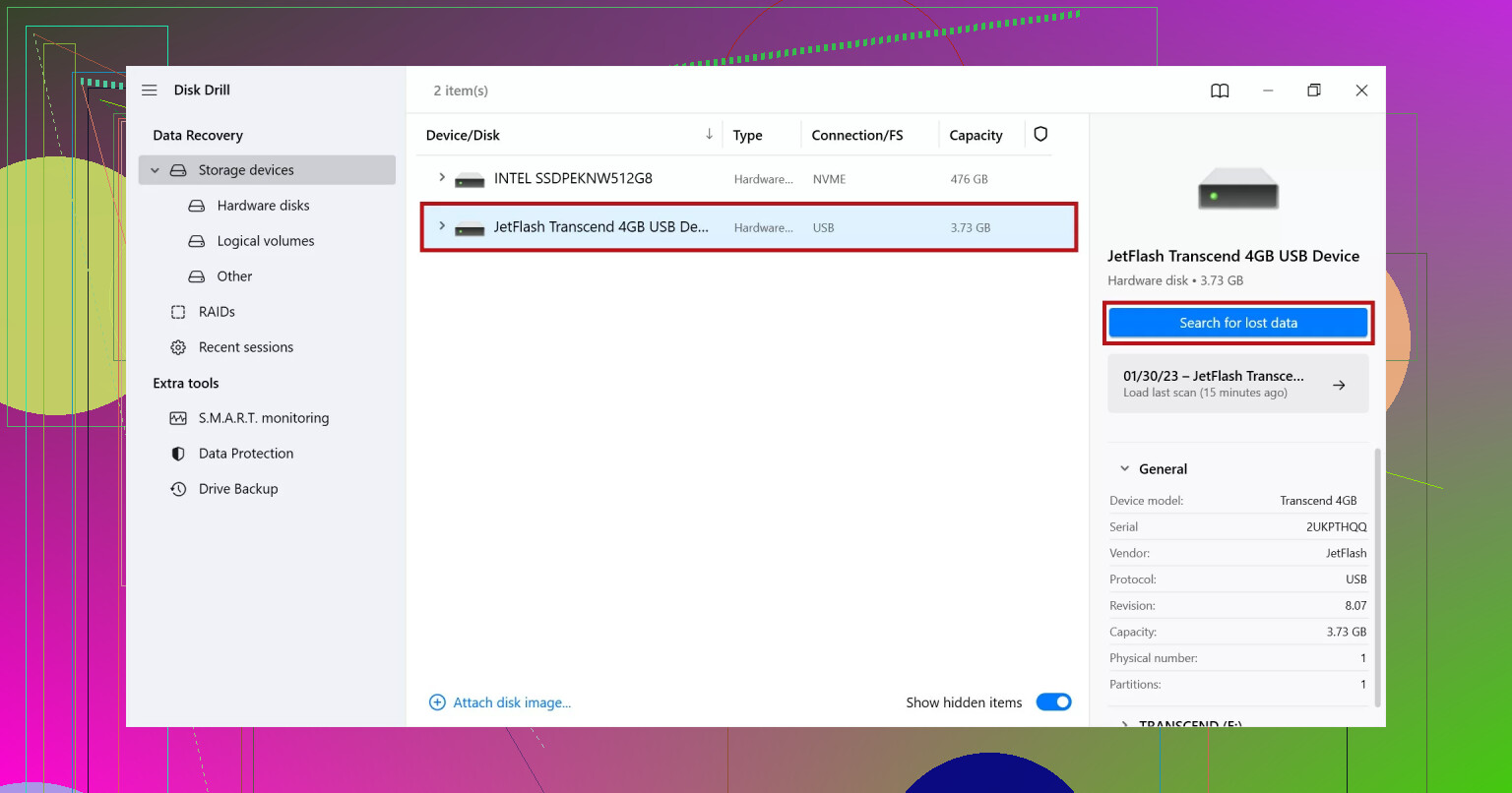
• Use a data recovery tool like Disk Drill. It helps a lot with USB drives that stopped showing files or turned RAW after a disconnect.
For more detail on this type of issue, see this guide on how to fix a USB drive showing empty or unreadable folders:
restore missing files from a USB flash drive safely -
Firmware and BIOS
• Check your motherboard or laptop support page for a BIOS update that mentions USB stability or Windows 11 support.
• Install carefully, following vendor steps.
• Also update firmware for the USB device itself if the maker provides a tool.
If you work through:
- test device on another PC,
- rear ports with no hub,
- power settings and Fast Startup,
- chipset and USB drivers,
and the same device still fails only on your system, you are likely looking at a flaky USB controller on the board. At that point a cheap PCIe USB card is often easier than fighting the on-board ports any longer.
First thing: since it used to work and now suddenly doesn’t, I’d split this into “is the device dying?” vs “did Windows 11 lose its mind after an update?”
@mikeappsreviewer and @suenodelbosque already hit most of the classic USB voodoo (Device Manager cleanup, power drain trick, chipset drivers, power options, etc.), so I’ll skip repeating those and focus on angles they didn’t really cover.
1. Check what exactly Windows is complaining about
You mentioned “USB device not recognized,” but that’s generic. The details help.
- Plug the device in.
- Open Event Viewer:
- Win + X → Event Viewer
- Go to: Windows Logs → System
- Filter Current Log and look for source: Kernel-PnP, USBHUB3, usbstor
If you see stuff like:
- “Device descriptor request failed”
- “Port reset failed”
- Or repeated “USBHUB3: UcxControllerSetFailed”
that usually means a low-level USB controller issue or the device firmware is choking, not just a simple driver glitch.
If you get repeated entries every time you plug the device in and only with that one device, start suspecting the device itself.
2. Try different USB generations and speeds
People skip this one a lot:
- If you’re on a USB‑C or blue USB 3.x port, try a classic black USB 2.0 port.
- If it’s going through a USB‑C adapter or dock, bypass all that and go straight into a rear motherboard port.
- Some flaky USB 3 devices randomly start working again if forced to negotiate as USB 2.
Windows 11 can be touchy with borderline‑spec devices on USB 3 controllers, especially after a big feature update.
3. Check if the device half‑enumerates
This is different than what @suenodelbosque described with Disk Management:
- Open Device Manager.
- Plug in the device.
- Watch for any quick flicker under:
- Universal Serial Bus controllers
- Human Interface Devices
- Portable Devices
- Disk drives
Sometimes the device:
- shows up for a second as “USB Mass Storage Device”
- then vanishes and ends as “Unknown USB Device (Port Reset Failed)”
That pattern usually means hardware or firmware fault on the device, not your ports.
4. If it’s a storage device, see if Windows still sees the disk layer
Even if you get “USB device not recognized,” occasionally the controller is the only part glitching and the disk itself is visible.
- Open Disk Management (Win + X → Disk Management).
- Look for:
- A disk with “Unknown / Not initialized”
- Or a disk with no drive letter, or RAW file system
If it shows up at all and you care about the data, stop messing with format/initialize and use a proper recovery tool.
This is exactly the case where something like Disk Drill is useful. It scans the drive at a low level and can often pull data off even when Windows doesn’t assign a letter or keeps nagging with errors.
If Disk Management shows absolutely nothing new when you plug the device in, the controller on the USB device itself is probably toast.
5. Rule out weird security / policy stuff
This is less common at home but happens surprisingly often on work / school machines:
- Some endpoint security tools or group policies can outright block new USB devices or specific device classes.
- If your machine is managed:
- Ask IT if they pushed a new policy recently.
- Some tools silently block storage while still popping the generic “USB device not recognized” toast.
You can also check:
- Press Win + R, type
gpedit.msc(if available). - Go to: Computer Configuration → Administrative Templates → System → Removable Storage Access
- Look for anything obviously blocking access and “Test” by temporarily disabling, if this is your own PC and not corporate‑managed.
Antivirus suites can also hook into USB events. Try briefly disabling real‑time protection to see if the device suddenly starts to enumerate correctly. If it does, you found the culprit.
6. Try a Linux live USB as a sanity check
This is where I slightly disagree with relying only on testing another Windows PC like @suenodelbosque said.
If you have a spare USB stick:
- Download Ubuntu or another Linux ISO.
- Create a bootable stick (Rufus, etc.).
- Boot your current PC from that stick (no install needed).
- In the live session, plug in the problematic USB device.
Results:
- If Linux also fails to see it (no device in
lsusb, no new drive in their file manager), that’s pretty strong evidence the device itself is failing. - If Linux sees it immediately and reads it fine while Windows 11 does not, you’ve got a Windows‑only software / driver / security problem.
This avoids the “it worked on the other PC, but that one has different hardware and random drivers” variable.
7. BIOS / UEFI level check
Another angle that goes beyond what @mikeappsreviewer did:
- Reboot and go into BIOS / UEFI.
- Look for:
- “USB Configuration”
- Legacy USB support
- XHCI handoff
- Some boards let you view attached USB storage in BIOS.
If:
- The device is visible as a USB drive in BIOS, then Windows is the one failing.
- The device is never seen in BIOS across any port, and other USB drives do show, that’s more proof the device is in trouble.
8. If the device is partially dying
Symptoms that scream “device failing,” not Windows:
- Works only if you hold the connector at a weird angle.
- Random disconnects on even tiny bumps.
- Gets unusually hot.
- Briefly appears then drops with Code 43 again and again.
At that stage, the best use of your time is:
- Get it recognized once, even briefly, on any machine.
- Immediately clone or recover with a tool like Disk Drill or similar before it completely dies.
9. If you also use Macs
Since USB issues tend to appear across OSes, if you ever see a related problem like a USB flash drive not appearing on macOS, there’s a solid walkthrough here for that platform:
how to fix a USB flash drive that’s not showing up on your Mac
Different OS, same kind of headache.
If you post back with:
- exact error code from Device Manager (Code 10, Code 43, etc.),
- whether the device works on any other OS or hardware at all,
- and if Disk Management sees anything,
it’ll be a lot easier to say “this is fixable in Windows” vs “this thing is basically a brick now.”
Short version: since ports, reboot and cable are ruled out, I’d focus on three angles the others barely touched: corruption from a bad disconnect, controller “burn‑in” on the device itself, and getting data off before more heavy troubleshooting.
1. Figure out if the device is actually dying
Everyone said “test on another PC,” which is solid, but I’d go a bit further:
- Test on another OS on the same machine, for example a Linux live USB.
- If it also fails there and on another Windows box, that USB device is almost certainly on its way out.
- If Linux sees it fine while Windows 11 does not, you are dealing with a Windows‑only software or driver mess.
That extra OS test avoids blaming your motherboard when the device itself is marginal.
2. See whether Windows can still see the disk layer at all
Others already mentioned Disk Management, but there is a nuance: sometimes Windows screams “USB device not recognized” yet a bare disk still peeks through.
- Open Disk Management after you plug it in.
- If a new disk appears with “Unknown / Not initialized” or RAW, your controller might be flaky but the platter or flash is still somewhat alive.
- If nothing new appears, even briefly, that points strongly at a failed USB bridge on the device.
If it appears even once, stop experimenting and focus on saving data.
3. Data first, diagnosis second
If this is a storage device and you care about what is on it, I’d reverse the normal order of troubleshooting:
-
Use a dedicated recovery tool that can scan at a low level.
-
Disk Drill is one of the better “click and recover” options for this type of USB failure:
Pros of Disk Drill:
- Friendly UI, not much learning curve.
- Can work with drives that show as RAW or unallocated.
- Good at pulling files from devices that disappear intermittently as long as they stay online long enough for a scan.
- Lets you preview many file types before committing to recovery.
Cons of Disk Drill:
- Full recovery on larger drives requires a paid license.
- Deep scans on a weak or dying USB stick can be slow and may stress failing hardware further.
- Not a magic wand: if the controller is completely dead and the drive never mounts, no software tool will fix that.
If Disk Drill can see the device but Windows Explorer cannot, you are in the “filesystem or partition broken” camp, not a pure USB controller issue.
4. Where I slightly disagree with others
- @mikeappsreviewer leans pretty heavily on the power drain trick. It absolutely works sometimes, but if a single device is failing while others are fine, I would not burn too much time repeating power drains. That fix is better when all or most ports are flaky.
- @suenodelbosque’s focus on power settings and selective suspend is great for hubs and high‑draw gear, but for a single device that used to be solid and now throws “device not recognized” on every port, power tweaks rarely resurrect it.
- @voyageurdubois suggested a lot of detailed event log digging. Useful if you enjoy diagnostics, but if you see repeated “device descriptor request failed” errors only with this device, the practical outcome is still “the device itself is in trouble.”
5. When to stop blaming Windows
If, after all this:
- The device fails on another PC or another OS.
- It never shows as a disk in Disk Management.
- Event Viewer or Device Manager repeatedly give Code 43 or descriptor errors just for this one gadget.
then the target has shifted: it is not really a “Windows 11” problem anymore but a failing USB device.
At that point, your realistic options are:
- Try to get it recognized once somewhere and run Disk Drill or a similar tool immediately.
- If the data is critical and the device is physically clicking, overheating, or disconnecting constantly, stop DIY work and look at professional data recovery, because each failed attempt can make it worse.
So: test under another OS, watch Disk Management like a hawk, and decide quickly whether you are in “recover data now with Disk Drill” territory or “replace this dying USB hardware” territory. The deeper Windows tweaks from @suenodelbosque, @voyageurdubois and @mikeappsreviewer are more useful when multiple USB devices are acting up, not just one that suddenly turned into a brick.
Try System Restore. It rolls Windows back to a known good state, files stay intact. Steps:
- Press Win+R, type rstrui.exe, hit Enter.
- Pick a restore point dated before the USB not recgonized error began.
- Unplug the USB device.
- Run the restore, let it reboot.
- Plug the device and test.
This often fixes driver or update regressions in minutes. If it works, pause updtes for 7 days to avoid repeat.